

Trading Platforms
Exness Download MT4: Complete Installation Guide for Windows and
Step-by-step guide to installing MetaTrader 4 on Exness for desktop and mobile trading


Forex Analyst
Forex Analyst specializing in currency markets, market trends, technical and fundamental analysis, and providing clear insights to help traders make informed decisions.
MetaTrader 4 remains one of the most widely adopted trading platforms in the forex industry, and Exness provides a customized version optimized for its trading conditions. This comprehensive guide walks through every aspect of obtaining, installing, and configuring the Exness MT4 platform across desktop and mobile devices. Whether you are a beginner taking your first steps in forex or an experienced trader switching brokers, understanding the proper installation process ensures a smooth start.
Contents
- Why Choose Exness MetaTrader 4 for Trading
- System Requirements for Exness MT4 Installation
- Downloading Exness MT4 for Windows PC
- Installing Exness MT4 on Windows 10 and 11
- Exness MT4 Download for Mac Users
- Setting Up Exness MT4 Mobile Application
- Configuring Exness MT4 After Installation
- Exness MT4 Features and Trading Tools
- Exness MT4 vs MT5 Key Differences
- Troubleshooting Common Exness MT4 Issues
- Final Assessment of Exness MT4 Platform
The Exness MT4 download package includes pre-configured server settings, eliminating the need for manual server entry. This reduces connection errors and accelerates the time from download to live trading. The platform supports all Exness account types including Standard, Standard Cent, Pro, Raw Spread, and Zero accounts, each with distinct spread and commission structures that function identically within the MT4 environment.
Before beginning the download, verify that your device meets the minimum system requirements. Windows users need Windows 7 or later with at least 2 GB of RAM and 500 MB of free disk space. Mac users can run MT4 through compatibility layers such as Wine or Parallels, though Exness also offers a native web terminal and MT5 as alternatives. Mobile devices require iOS 11.0 or Android 5.0 and above for the respective app versions.
Why Choose Exness MetaTrader 4 for Trading
Exness has tailored its MT4 offering to align with the broker's core strengths: ultra-low spreads, instant execution, and unrestricted trading strategies. The platform supports all order types including market, pending, stop, and trailing stop orders. Expert Advisors function without restrictions, making it suitable for algorithmic traders who rely on automated strategies. The broker imposes no minimum distance for stop-loss and take-profit orders, allowing precise risk management even during high-volatility events.
- Raw spreads from 0.0 pips on major pairs with Raw Spread and Zero accounts
- No requotes and market execution model across all account types
- Unlimited hedging and scalping permissions without broker intervention
- Support for custom indicators and Expert Advisors from the MQL5 marketplace
- One-click trading panel for rapid order placement during fast markets
- Built-in economic calendar and news feed from FXStreet integration
The Exness MT4 build includes proprietary enhancements such as extended historical data for backtesting, optimized server connectivity for reduced latency, and pre-installed trading templates for popular strategies. These modifications maintain full compatibility with standard MT4 functionality while improving the practical trading experience.
The platform also integrates with Exness trading calculators, allowing position sizing, margin requirements, and pip value calculations directly within the terminal. This eliminates the need to switch between browser tools and the trading platform during active market hours.
System Requirements for Exness MT4 Installation
Proper system preparation prevents installation failures and runtime instability. The following table outlines minimum and recommended specifications for each supported operating system. Meeting recommended specifications ensures smoother performance when running multiple charts, indicators, and Expert Advisors simultaneously.
Scroll horizontally to see all columns
| Component | Windows Minimum | Windows Recommended | Mac (via Wine/Parallels) | Mobile iOS | Mobile Android |
|---|---|---|---|---|---|
| Operating System | Windows 7 SP1 | Windows 10/11 64-bit | macOS 10.14+ | iOS 11.0+ | Android 5.0+ |
| Processor | 1.5 GHz single-core | 2.5 GHz multi-core | Intel Core i5 / Apple M1+ | A10 Fusion or newer | Snapdragon 625 / equivalent |
| RAM | 2 GB | 4 GB or more | 4 GB minimum | 2 GB | 3 GB |
| Disk Space | 500 MB | 1 GB SSD | 1 GB | 200 MB | 150 MB |
| Screen Resolution | 1024 x 768 | 1920 x 1080 | 1280 x 800 | Retina display | 720 x 1280 |
| Internet | Broadband 1 Mbps | Broadband 10+ Mbps | Stable broadband | 4G / WiFi | 4G / WiFi |
For traders running multiple MT4 instances or using resource-intensive Expert Advisors, a Windows VPS hosted near Exness data centers provides the most stable environment. Exness offers free VPS access for clients meeting specific equity and trading volume thresholds, typically $500 equity and 5 lots monthly volume.
A stable platform foundation matters more than advanced features when real money is at risk. Prioritize system reliability over cosmetic enhancements.
Downloading Exness MT4 for Windows PC
The official Exness website provides the most secure and current version of the MT4 installer. Navigate to the trading platforms section and select MetaTrader 4. The download button initiates a direct download of the executable file, typically named exness4setup.exe. File size ranges between 20-30 MB depending on the build version. Always verify the download source URL begins with exness.com to avoid modified installers from third-party sites.
- Visit the official Exness website and log into your Personal Area
- Navigate to Trading Platforms > MetaTrader 4
- Click the Download for Windows button
- Save the installer to a known location such as Downloads folder
- Verify file size matches the expected range (20-30 MB)
- Right-click the file and select Properties to confirm digital signature from Exness
The installer includes both 32-bit and 64-bit compatibility. Modern Windows versions automatically select the appropriate architecture. If you encounter architecture-related errors, right-click the installer, select Properties > Compatibility, and check Run this program in compatibility mode for Windows 7.
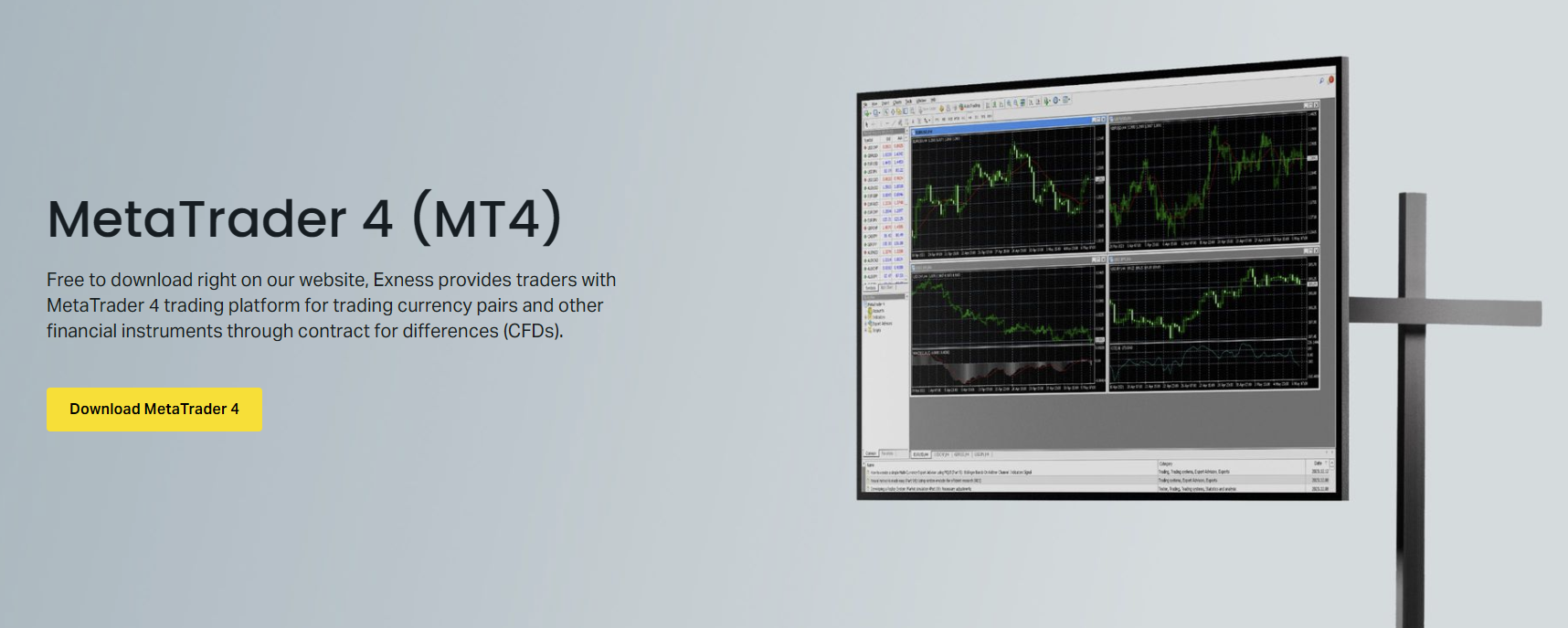
After download completion, the installer is ready for execution. The installation wizard guides through license agreement acceptance, destination folder selection, and start menu shortcut creation. Default settings work for most users, though advanced users may prefer a custom installation directory on a secondary drive for backup simplicity.
Installing Exness MT4 on Windows 10 and 11
Run the downloaded exness4setup.exe file as administrator by right-clicking and selecting Run as administrator. This prevents permission-related installation failures, particularly when installing to Program Files directories. The setup wizard presents the End User License Agreement; read and accept to proceed. The default installation path is C:\Program Files\Exness MT4 or C:\Program Files (x86)\Exness MT4 depending on system architecture.
- Right-click exness4setup.exe and select Run as administrator
- Accept the End User License Agreement
- Choose installation directory or accept default
- Select Start Menu folder name (default: Exness MT4)
- Check Create a desktop shortcut for easy access
- Click Install and wait for file extraction and registration
- Click Finish to complete installation
Upon first launch, the platform automatically connects to Exness demo servers. The login dialog appears prompting for account credentials. Enter your Exness account number, password, and select the appropriate server: Exness-MT4-Trial for demo accounts or Exness-MT4-Real for live accounts. The server list populates automatically from the pre-configured broker settings embedded in the installer.
Scroll horizontally to see all columns
| Account Type | Server Name | Use Case |
|---|---|---|
| Demo Standard | Exness-MT4-Trial | Practice trading with virtual funds |
| Demo Professional | Exness-MT4-Trial | Test Pro, Raw Spread, Zero conditions |
| Live Standard / Cent | Exness-MT4-Real | Real trading on Standard accounts |
| Live Pro / Raw Spread / Zero | Exness-MT4-Real | Real trading on Professional accounts |
After successful login, the platform downloads symbol specifications, historical data, and account-specific settings. This initial synchronization may take 30-60 seconds depending on connection speed. Once complete, the Market Watch window displays all available trading instruments with real-time bid and ask prices.
First login synchronization is normal. Allow the platform to fully populate symbol data before placing trades to avoid incorrect margin calculations.
Exness MT4 Download for Mac Users
MetaQuotes does not provide a native macOS version of MT4. Mac users have three viable options: Wine compatibility layer, Parallels Desktop virtualization, or the Exness Web Terminal. Wine is free but requires technical configuration. Parallels offers seamless Windows integration but requires a paid license. The Exness Web Terminal runs in any modern browser without installation, providing core MT4 functionality including charting, indicators, and order management.
- Wine: Install Homebrew, then run 'brew install --cask wine-stable', download Windows MT4 installer, run via Wine
- Parallels Desktop: Install Parallels, create Windows VM, install MT4 normally within Windows environment
- Exness Web Terminal: Access via browser at trade.exness.com, login with Exness credentials
- MetaTrader 5 native Mac: Consider MT5 which has official macOS support from MetaQuotes
For Wine installations, create a dedicated Wine prefix for MT4 to isolate it from other Windows applications. This prevents registry conflicts and simplifies troubleshooting. The command 'WINEPREFIX=~/.mt4 wine exness4setup.exe' creates a clean environment. Some indicators and Expert Advisors may exhibit reduced functionality under Wine due to Windows API dependencies.
Setting Up Exness MT4 Mobile Application
The Exness MT4 mobile app is available on the Apple App Store for iOS and Google Play Store for Android. Search for 'MetaTrader 4' published by MetaQuotes Software Corp. The Exness-branded version is not separately listed; instead, download the official MetaQuotes app and configure it for Exness servers. App size is approximately 50-80 MB depending on platform and version.
- Open App Store (iOS) or Play Store (Android)
- Search for 'MetaTrader 4' by MetaQuotes Software Corp
- Install the official application
- Launch app and tap Settings > New Account
- Search for 'Exness' in broker list
- Select Exness-MT4-Real or Exness-MT4-Trial
- Enter login credentials and tap Sign In
The mobile app synchronizes chart templates, indicator settings, and watchlists with the desktop platform when using the same account. Push notifications for price alerts, margin calls, and order executions can be enabled in the app settings. Biometric authentication (Face ID, Touch ID, fingerprint) adds security for quick access without typing passwords.

Mobile charting includes 30 technical indicators, 9 timeframes from M1 to MN, and three chart types: bars, candlesticks, and line. The interface adapts to screen orientation; landscape mode expands chart area for analysis. One-tap trading from the chart context menu enables rapid order placement. The app also includes a built-in economic calendar and real-time financial news feed.
Configuring Exness MT4 After Installation
Post-installation configuration tailors the platform to your trading workflow. Start by organizing the Market Watch window: right-click and select Show All to display all available instruments, then hide unused symbols by selecting Hide. Create custom symbol sets for different trading sessions or strategies using the Sets feature. This reduces visual clutter and improves platform responsiveness.
- Organize Market Watch: right-click > Show All, then hide unused symbols
- Create symbol sets for Forex majors, minors, exotics, metals, indices, crypto
- Configure chart templates: save preferred indicators, colors, timeframes as default
- Set up profiles for different strategies: scalping, swing, position trading
- Enable one-click trading: Tools > Options > Trade > One Click Trading
- Configure alerts: right-click chart > Trading > Alert for price notifications
- Set default lot size and stop/take profit distances in Tools > Options > Trade
Chart templates save significant setup time. Configure a chart with your preferred indicators (moving averages, RSI, MACD, Bollinger Bands), color scheme, and timeframe. Right-click the chart, select Template > Save Template, and name it. Apply to any new chart via Template > Load Template. Set a default template by naming it 'default.tpl' so new charts open with your preferred setup automatically.
Scroll horizontally to see all columns
| Strategy Type | Primary Indicators | Timeframes | Chart Type |
|---|---|---|---|
| Scalping | EMA 9/21, RSI 7, Stochastic 5/3/3 | M1, M5, M15 | Candlestick |
| Day Trading | EMA 50/200, MACD, Volume, ATR | M15, H1, H4 | Candlestick |
| Swing Trading | SMA 20/50/200, RSI 14, Fibonacci | H4, D1, W1 | Candlestick |
| Position Trading | SMA 50/200, MACD Weekly, ADX | D1, W1, MN | Line / Candlestick |
| Algorithmic / EA | Custom EA indicators only | Per EA requirements | Per EA requirements |
Profiles extend templates by saving entire workspace layouts including multiple chart windows, Market Watch configuration, Navigator panel state, and Terminal window tabs. Create profiles for different trading sessions (Asian, London, New York) or market conditions (trending, ranging, high volatility). Switch profiles via File > Profiles without restarting the platform.
Exness MT4 Features and Trading Tools
The Exness MT4 build includes the full standard MetaTrader 4 feature set enhanced with broker-specific tools. The Navigator panel provides access to accounts, indicators, Expert Advisors, and scripts. The Terminal window at the bottom displays Trade, Exposure, Account History, News, Alerts, Mailbox, Market, Code Base, Experts, and Journal tabs. Each tab serves a distinct operational purpose.
- Trade tab: open positions, pending orders, real-time P&L, margin level
- Exposure tab: aggregate currency exposure across all open positions
- Account History: detailed trade history with filtering and export options
- News tab: real-time FXStreet financial news feed
- Alerts tab: price and indicator alert management
- Experts tab: Expert Advisor activity logs and error messages
- Journal tab: system events, connection logs, execution records
The Strategy Tester enables backtesting and optimization of Expert Advisors using historical data. Exness provides extended tick data history for major pairs, improving backtest accuracy. Visual mode shows trade execution on charts during backtesting. Optimization runs multiple parameter combinations to identify robust settings. Forward testing on demo accounts validates optimized parameters before live deployment.
Backtesting on broker-specific data reveals true trading costs. Generic historical data omits spread widening, slippage, and commission structures that determine real profitability.
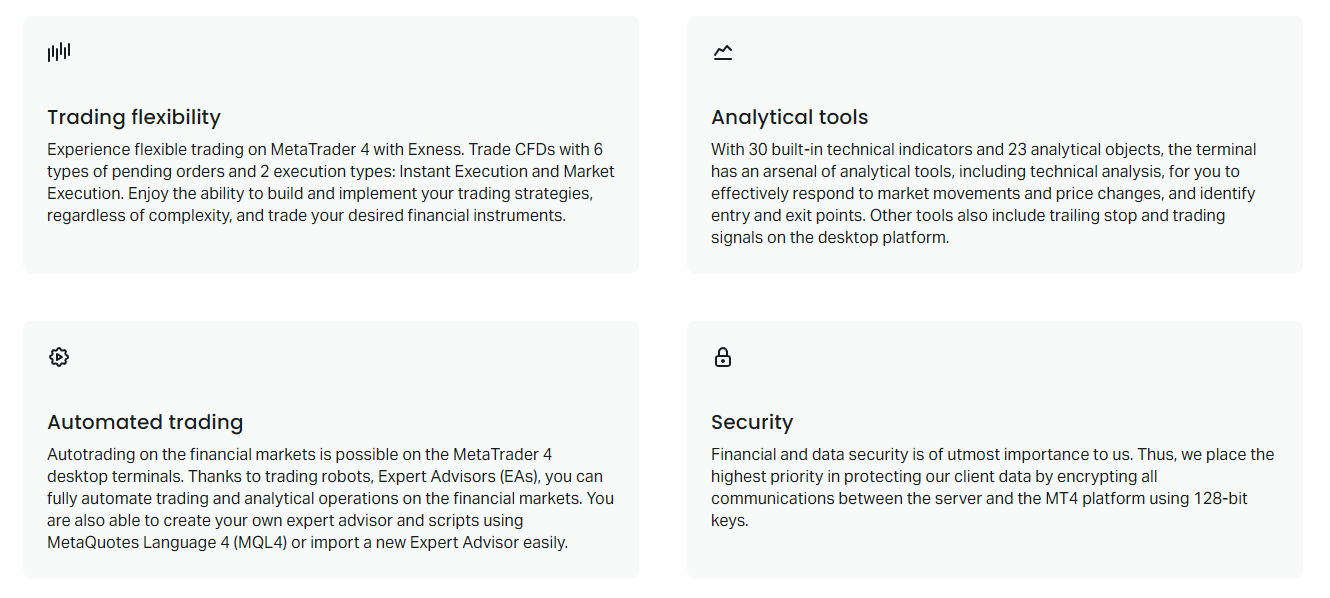
The MetaEditor integrated development environment allows creating custom indicators, Expert Advisors, and scripts using MQL4 language. Syntax highlighting, debugging, and compilation are built-in. The Code Base tab in the Terminal window provides access to thousands of free community-developed tools. The Market tab offers commercial indicators and EAs for purchase or rental. Exness imposes no restrictions on third-party tools.
Exness MT4 vs MT5 Key Differences
Traders often question whether to use MT4 or MT5 on Exness. Both platforms are fully supported with identical trading conditions. MT4 remains preferred for forex-focused traders using MQL4 Expert Advisors and custom indicators. MT5 offers additional timeframes, more order types, depth of market, and a superior strategy tester with multi-currency backtesting. The choice depends on specific trading requirements.
Scroll horizontally to see all columns
| Feature | MetaTrader 4 | MetaTrader 5 |
|---|---|---|
| Timeframes | 9 (M1-MN) | 21 (M1-MN plus additional) |
| Order Types | 4 pending types | 6 pending types |
| Depth of Market | Not available | Full Level 2 DOM |
| Hedging Support | Native | Native (since build 1395) |
| Netting Support | Not available | Native |
| Strategy Tester | Single currency | Multi-currency, multi-threaded |
| Programming Language | MQL4 | MQL5 (object-oriented) |
| Economic Calendar | Built-in basic | Advanced with filters |
| Indicators Built-in | 30 | 38 |
| Exness Account Compatibility | All account types | All account types |
MQL4 and MQL5 are not cross-compatible. Expert Advisors written for MT4 cannot run on MT5 without rewriting. This is the primary reason many algorithmic traders remain on MT4. Exness continues to update and support both platforms equally. New account openings can choose either platform; existing accounts can add MT4 or MT5 instances from the Personal Area.
Troubleshooting Common Exness MT4 Issues
Connection issues, login failures, and performance problems have identifiable causes and solutions. The most frequent issue is invalid account credentials or incorrect server selection. Verify the account number matches exactly (no extra spaces), the password is current, and the server matches account type (Trial for demo, Real for live). Password changes in the Personal Area require re-entry in MT4.
- Invalid account: verify login credentials in Personal Area, reset password if needed
- Wrong server: demo accounts use Exness-MT4-Trial, live accounts use Exness-MT4-Real
- Connection lost: check internet, firewall, antivirus; try different network
- Old build error: Help > Check for Updates, or reinstall latest version from Exness
- Chart data gaps: right-click chart > Refresh, or delete history files in history folder
- EA not trading: check Experts tab for errors, verify Allow Live Trading is enabled
- Slow performance: reduce open charts, disable unused indicators, increase RAM allocation
Firewall and antivirus software occasionally block MT4 network connections. Add the MT4 executable (terminal.exe) to the exception list in Windows Defender and any third-party security software. Corporate networks may restrict non-standard ports; MT4 uses port 443 (HTTPS) and 444 for secure connections. If port restrictions exist, the Exness Web Terminal operates over standard HTTPS and typically bypasses such limitations.
Most MT4 issues stem from network security software, not the platform itself. Configure exceptions before assuming broker or platform faults.
For persistent issues, the Journal tab (Ctrl+T) provides detailed connection logs. Look for entries marked 'Error' or 'Warning' with timestamps matching the problem occurrence. Exness support can analyze these logs when provided via screenshot or copy-paste. The 'Test Connection' button in the login dialog performs a quick server reachability check without full login.
Final Assessment of Exness MT4 Platform
Exness MT4 delivers a professional-grade trading environment that combines the familiar MetaTrader 4 interface with broker-specific optimizations. The pre-configured installer eliminates setup friction, while the underlying liquidity infrastructure provides competitive spreads and reliable execution. Mobile and web alternatives ensure platform access from any device. For traders committed to the MT4 ecosystem, Exness offers one of the most complete implementations available.
- Download exclusively from official Exness website for security
- Verify system requirements before installation to avoid compatibility issues
- Configure chart templates and profiles to match your trading methodology
- Back up MQL4, Profiles, and Templates folders regularly
- Use VPS for algorithmic trading requiring 24/7 uptime
- Keep platform updated via Help > Check for Updates
- Leverage Exness Web Terminal as backup access method
Frequently Asked Questions
Does Exness have MT4 available for all account types?
Yes, Exness MT4 supports all account types including Standard, Standard Cent, Pro, Raw Spread, and Zero accounts. Trading conditions remain identical across platforms.
Can I download Exness MT4 for Windows 10 and 11?
The Exness MT4 installer is fully compatible with Windows 10 and 11, both 32-bit and 64-bit versions. Run as administrator for smooth installation.
Is there an Exness MT4 download for Mac?
No native macOS version exists. Mac users can use Wine, Parallels Desktop, or the Exness Web Terminal which runs in any browser without installation.
How do I download Exness MT4 mobile app?
Search for 'MetaTrader 4' by MetaQuotes Software Corp on the Apple App Store or Google Play Store. Configure with Exness servers after installation.
What is the Exness MT4 server for demo accounts?
Demo accounts connect to Exness-MT4-Trial server. Live accounts use Exness-MT4-Real. The server list populates automatically in the login dialog.
Can I use Expert Advisors on Exness MT4?
Yes, Exness imposes no restrictions on Expert Advisors, custom indicators, or scripts. All algorithmic trading strategies are permitted including scalping and hedging.
How do I update Exness MT4 to the latest version?
Open MT4, go to Help > Check for Updates. The platform downloads and installs updates automatically. Alternatively, download the latest installer from the Exness website.
What should I do if Exness MT4 shows 'No Connection'?
Check internet connection, verify firewall/antivirus exceptions for terminal.exe, confirm correct server selection, and try restarting the platform. Contact Exness support if issues persist.