

Trading Platforms
Exness App Download Guide for Mobile and Desktop
Learn how to install Exness mobile and desktop apps for seamless forex and CFD trading.


Forex Analyst
Forex Analyst specializing in currency markets, market trends, technical and fundamental analysis, and providing clear insights to help traders make informed decisions.
The Exness app download process gives traders immediate access to global financial markets from virtually any device. Whether you prefer trading on a smartphone during a commute or analyzing charts on a desktop at home, the broker provides native applications for Android, iOS, Windows, and macOS. Each version maintains feature parity with the web platform while optimizing performance for its respective operating system.
Contents
- Exness Mobile App Overview
- Downloading Exness App on Android Devices
- Google Play Store Installation
- APK Direct Download Method
- Installing Exness App on iOS Devices
- App Store Download Process
- Exness App for PC and Desktop
- Windows Installation Guide
- Mac Compatibility Options
- Exness Trading Platforms Available in App
- MetaTrader 4 Integration
- MetaTrader 5 Features
- Exness Terminal Web Access
- Account Management Through Mobile App
- Security Features and Data Protection
- Troubleshooting Common Download Issues
- Updating and Maintaining the App
- Regional Availability and Restrictions
- Key Takeaways About Exness App Download
Mobile trading has become essential for modern market participants who need to react to price movements in real time. The Exness trading app delivers full account management, advanced charting, one-tap execution, and access to over 200 instruments including forex pairs, metals, energies, indices, stocks, and cryptocurrencies. This guide covers every supported download method, installation requirements, and platform-specific nuances.
Before initiating any download, verify that you are accessing the official Exness website or authorized app stores. Unofficial sources may distribute modified installers that compromise account security. The broker publishes direct download links at its official domain and maintains verified publisher accounts on Google Play and the Apple App Store. Always confirm the developer name matches Exness SC Ltd or its authorized regional entities.
Exness Mobile App Overview
The Exness mobile application consolidates trading, analysis, and account administration into a single interface optimized for touchscreens. It supports both MetaTrader 4 and MetaTrader 5 account types, allowing seamless switching between platforms without logging out. The app includes real-time quotes, interactive charts with multiple timeframes, technical indicators, and drawing tools comparable to desktop terminals.
- Unified dashboard for Standard, Pro, Raw Spread, and Zero accounts
- Instant deposit and withdrawal processing for supported payment methods
- Push notifications for price alerts, margin calls, and order fills
- Economic calendar with filterable event impact ratings
- Trading Central signals integrated directly into chart view
- Dark and light themes with customizable color schemes
Performance benchmarks indicate the app maintains sub-second order execution speeds on stable connections. The installer package size ranges from 45 MB on Android to 65 MB on iOS, with incremental updates typically under 15 MB. Minimum OS requirements are Android 8.0 (API level 26) and iOS 14.0, covering the vast majority of active devices globally.
Downloading Exness App on Android Devices
Android users have two primary installation paths: the Google Play Store and direct APK download from the Exness website. The Play Store version receives automatic background updates and benefits from Google Play Protect scanning. The APK route is useful for devices without Google Mobile Services, regions where the Play Store listing is restricted, or traders who prefer manual update control.
Google Play Store Installation
Open the Google Play Store app, search for "Exness" and verify the publisher reads "Exness SC Ltd" before tapping Install. The store listing displays current version number, last update date, and required permissions. Grant storage access for chart image exports and notification permission for price alerts. First launch prompts for existing account login or new registration.
- Search "Exness" in Google Play Store
- Confirm publisher: Exness SC Ltd
- Tap Install and accept permissions
- Launch app and log in with credentials
- Enable biometric login in security settings
APK Direct Download Method
Visit the official Exness download page using your device browser. Tap the Android download button to fetch the latest APK. Android will block installation from unknown sources by default; navigate to Settings > Security > Install unknown apps, select your browser, and toggle Allow from this source. Return to the Downloads folder, tap the APK, and confirm installation. This method requires manual update checks.
Scroll horizontally to see all columns
| Method | Auto Updates | Play Protect Scan | Regional Restrictions | Best For |
|---|---|---|---|---|
| Google Play Store | Yes | Yes | Some countries | Most users |
| Direct APK | Manual | No | None | Restricted regions, no GMS devices |
After installation, the app requests permission to access device storage for exporting chart screenshots and transaction history reports. Granting this permission is optional but recommended for full functionality. The app also requests network state access to detect connectivity changes and adjust data refresh intervals automatically.
Installing Exness App on iOS Devices
iPhone and iPad users download exclusively through the Apple App Store. Apple's review process ensures the binary matches the version submitted by Exness, eliminating sideloading risks. Search "Exness" in the App Store, confirm the developer is "Exness SC Ltd," and tap Get. Face ID or Touch ID authentication may be required depending on your device settings and Apple ID configuration.
App Store Download Process
The iOS app requires iOS 14.0 or later and approximately 65 MB of free storage. After installation, the app appears on the home screen. First launch presents the login screen with options for existing accounts, demo account creation, or new live registration. iOS 16+ supports passkey authentication for passwordless login. Enable notifications in Settings > Notifications > Exness to receive price alerts and margin warnings.
- Open App Store and search "Exness"
- Verify developer: Exness SC Ltd
- Tap Get and authenticate with Apple ID
- Launch app and sign in or register
- Configure Face ID or Touch ID in app settings
- Allow notifications for real-time alerts
Apple's mandatory code signing and sandbox architecture make iOS the most secure mobile trading environment by default, though Android's flexibility suits advanced users who need custom ROM compatibility.
Exness App for PC and Desktop
Desktop traders can choose between the Exness Terminal web-based platform, native MetaTrader 4 and 5 installations, or the Exness proprietary desktop application where available. The web terminal requires no installation and runs in any modern browser with WebGL support. Native MT4 and MT5 downloads provide the fullest feature set including expert advisors, custom indicators, and strategy tester functionality.
Windows Installation Guide
For Windows 10 and 11, download the MT4 or MT5 installer from the Exness platform page. Run the executable, accept the license agreement, and choose installation directory. The installer creates Start Menu shortcuts and optionally a desktop icon. First launch prompts for server selection; choose Exness-MT4Trial or Exness-MT5Trial for demo, or Exness-Real for live accounts. Windows Defender SmartScreen may prompt for confirmation on first run.
- Download MT4 or MT5 installer from Exness platform page
- Run executable as administrator for system-wide install
- Select Exness-Real server for live trading
- Enter login credentials from Personal Area
- Configure one-click trading in Tools > Options
Mac Compatibility Options
macOS users have three viable paths: the native MT5 build for Apple Silicon and Intel, the web terminal in Safari or Chrome, or Windows MT4/MT5 via Parallels Desktop or VMware Fusion. The native MT5 download is a .dmg file that mounts and drags to Applications. Gatekeeper may require right-click > Open on first launch. MT4 lacks a native macOS build; the web terminal or virtualization are the only options for MT4-specific expert advisors.
Scroll horizontally to see all columns
| Platform | Installation | Expert Advisors | Custom Indicators | Best For |
|---|---|---|---|---|
| Exness Web Terminal | None (browser) | No | Limited | Quick access, any OS |
| MT5 Native (Windows) | Installer | Yes | Yes | Algorithmic trading |
| MT5 Native (macOS) | DMG package | Yes | Yes | Mac algorithmic trading |
| MT4 via Virtualization | VM required | Yes | Yes | Legacy EA compatibility |
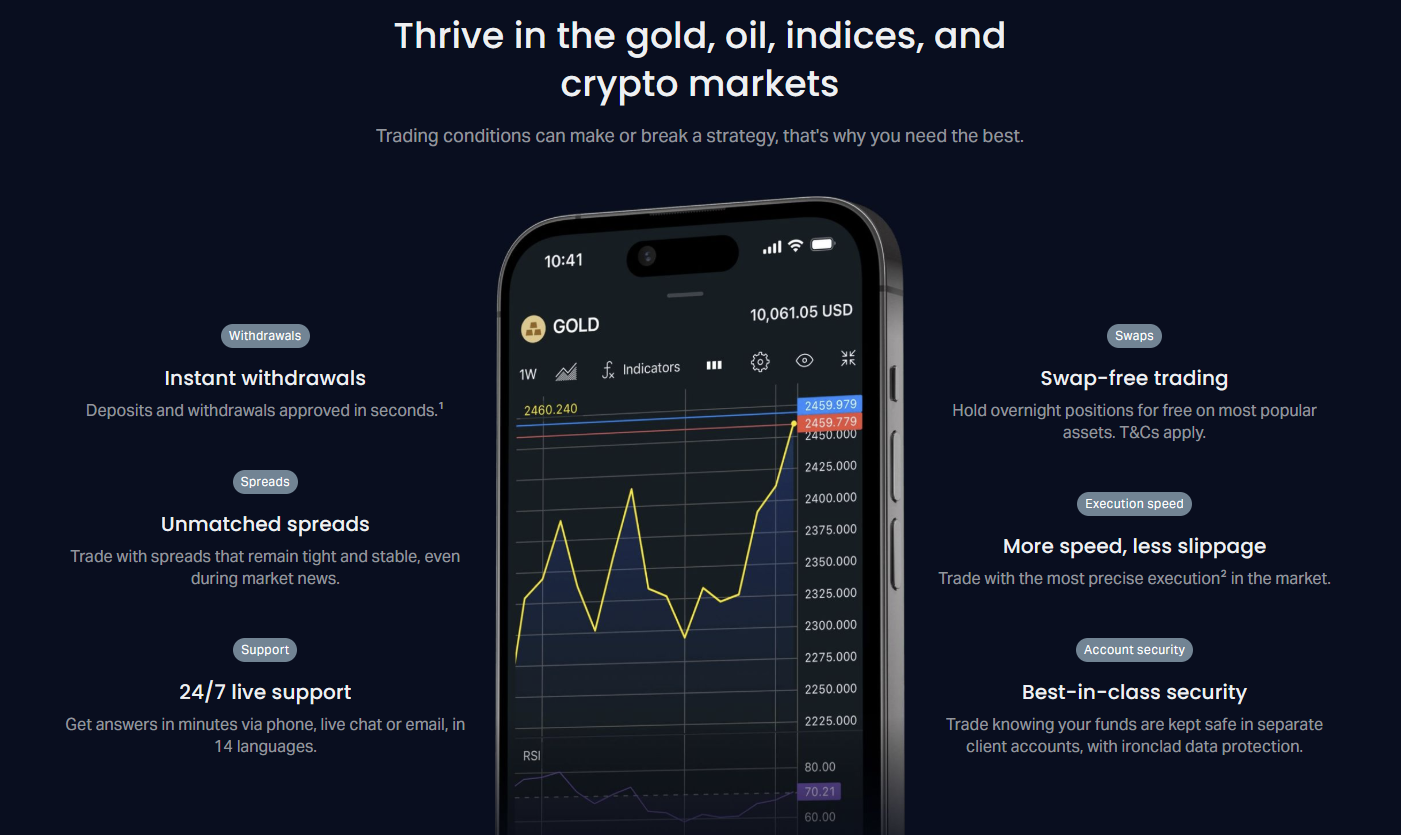
The Exness proprietary desktop application, where offered, mirrors the mobile app feature set with expanded screen real estate for multi-chart layouts. It connects to the same trade servers as mobile and web versions, ensuring consistent pricing and execution. Check the Exness download page for current availability in your region, as the proprietary desktop client rolls out progressively.
Exness Trading Platforms Available in App
The Exness app serves as a gateway to multiple trading engines. Understanding the differences helps you select the right account type for your strategy. All platforms share the same pricing feed and execution model; differences lie in order types, hedging rules, and analytical tooling.
MetaTrader 4 Integration
MT4 remains the industry standard for forex-focused traders. The Exness MT4 mobile app supports hedging mode exclusively, 9 timeframes, 30 built-in indicators, and 24 analytical objects. Expert advisors run on the desktop terminal but cannot be managed from mobile; however, mobile users can monitor EA trades and modify or close positions manually. The app displays real-time profit/loss, margin level, and free margin for all open positions.
MetaTrader 5 Features
MT5 adds netting mode, 21 timeframes, 38 built-in indicators, 44 analytical objects, and an integrated economic calendar. The mobile app supports both hedging and netting accounts depending on account type. Depth of Market (DOM) is viewable on tablets and large-screen phones. The strategy tester and MQL5 Cloud Network are desktop-only features. MT5 also offers exchange-traded instruments like stocks and futures where regulated.
Exness Terminal Web Access
The Exness Terminal is a browser-based platform requiring no download. It loads instantly, supports TradingView charts, and synchronizes watchlists and drawings with the mobile app. One-click trading, partial close, and trailing stop are available. The web terminal is ideal for Chromebooks, Linux machines, or shared computers where software installation is restricted. All account types except MT4-specific legacy accounts are accessible.
Choosing between MT4 and MT5 often comes down to ecosystem familiarity. MT4's vast library of free EAs and indicators remains unmatched, while MT5's modern architecture handles multi-asset portfolios more elegantly.
Account Management Through Mobile App
The Exness app extends beyond trade execution into comprehensive account administration. Deposits and withdrawals process directly in-app for most payment methods, including bank cards, electronic wallets, and local bank transfers. The app displays real-time transaction status, estimated processing times, and fee breakdowns. Identity verification documents can be uploaded via camera or gallery, with OCR auto-fill reducing manual entry errors.
- Instant deposits via Visa, Mastercard, and major e-wallets
- Withdrawal requests with real-time status tracking
- Document upload for KYC verification
- Leverage adjustment per instrument group
- Swap-free account toggle for eligible regions
- Partner/IB referral link generation and sharing
The Personal Area integration allows seamless switching between the app and web portal. Changes made in one environment reflect instantly in the other. Notification preferences sync across devices, so a price alert set on desktop triggers a push notification on mobile. The app also provides access to trading history reports in PDF and CSV formats for tax and performance analysis.
Scroll horizontally to see all columns
| Function | Availability | Processing Time | Fees |
|---|---|---|---|
| Card Deposit | Global | Instant | Zero |
| E-Wallet Deposit | Regional | Instant | Zero |
| Bank Withdrawal | Global | 1-3 business days | Varies by bank |
| Crypto Withdrawal | Global | Blockchain confirmations | Network fee only |
| Leverage Change | Global | Immediate | Free |
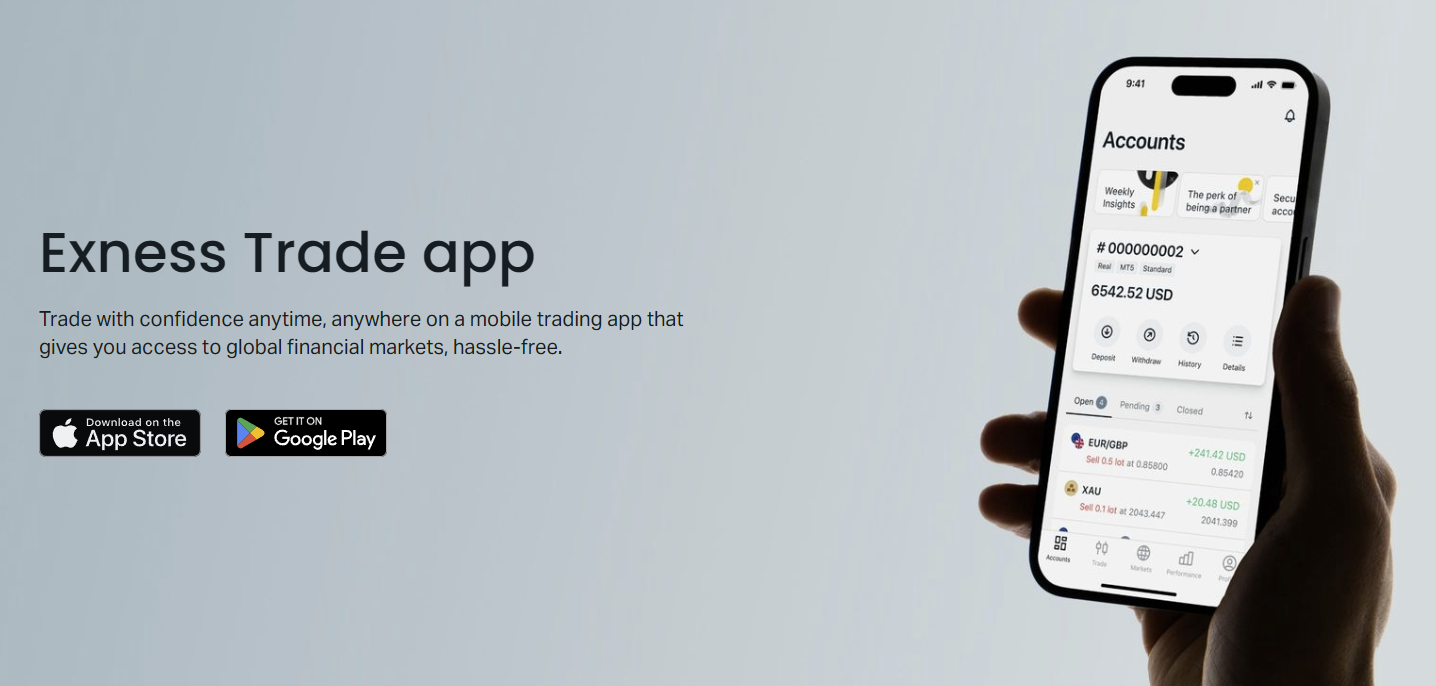
Risk management tools are prominently placed. Margin level color coding (green, yellow, red) updates in real time. Stop out and margin call thresholds are displayed alongside current equity. The app includes a built-in margin calculator that simulates position sizing impact on free margin before order placement. This helps prevent accidental over-leveraging during volatile sessions.
Security Features and Data Protection
Security architecture follows financial industry standards. All API communication uses TLS 1.3 with certificate pinning to prevent man-in-the-middle attacks. Biometric authentication (Face ID, Touch ID, fingerprint) encrypts the local credential store using device hardware security modules. Session tokens rotate every 15 minutes and invalidate on app backgrounding beyond a configurable timeout.
- TLS 1.3 with certificate pinning for all network calls
- Biometric credential encryption via hardware secure enclave
- Automatic session timeout with configurable duration
- Two-factor authentication via authenticator app or SMS
- Device management panel to revoke trusted devices
- Login history with IP, location, and device fingerprint
Certificate pinning is a critical but often overlooked defense. It ensures the app only communicates with genuine Exness servers even if a compromised certificate authority issues a fraudulent certificate.
Troubleshooting Common Download Issues
Installation failures typically stem from three sources: insufficient storage, OS version incompatibility, or network restrictions. Android requires at least 200 MB free space for installation and cache. iOS enforces stricter sandbox limits; offload unused apps if storage is low. Corporate or public Wi-Fi may block APK downloads or app store access; switch to mobile data or a trusted VPN.
- Clear Google Play Store cache and data if install stalls
- Disable battery optimization for Exness app on Android
- Check date/time settings; incorrect time breaks TLS validation
- Ensure unknown sources permission granted for APK installs
- Restart device after OS update before installing apps
- Contact support with error code if issues persist
Updating and Maintaining the App
Automatic updates are the default on both Play Store and App Store. Android users can disable auto-update per app in Play Store settings; iOS users control this globally in Settings > App Store > App Updates. Manual update checks are available in the app's About section. Release notes detail new instruments, bug fixes, and performance improvements. Major version upgrades may require re-login but preserve all settings and watchlists.
- Enable auto-update for security patches
- Review release notes for new trading instruments
- Backup watchlist and chart templates before major updates
- Report bugs via in-app feedback or support chat
- Keep OS updated for latest WebView and security patches
Trading app updates frequently include server-side execution improvements that reduce slippage during news events. Staying current ensures you benefit from latency optimizations.
Regional Availability and Restrictions
Exness operates under multiple regulatory licenses, and app availability varies by jurisdiction. Some countries restrict forex trading apps in local app stores. The direct APK download bypasses store-level geo-blocks but may still face IP-based access controls at the trade server level. Traders in restricted regions should consult the Exness website for current service availability and consider the web terminal as a fallback.
Scroll horizontally to see all columns
| Region | Play Store | App Store | Direct APK | Web Terminal |
|---|---|---|---|---|
| EU/UK | Yes | Yes | Yes | Yes |
| Southeast Asia | Yes | Yes | Yes | Yes |
| Latin America | Yes | Yes | Yes | Yes |
| Restricted Jurisdictions | No | No | Conditional | Conditional |
Key Takeaways About Exness App Download
The Exness app download process is straightforward across all major platforms when using official sources. Android users choose between Play Store convenience and APK flexibility. iOS users rely on the App Store's curated security. Desktop traders select from web terminal immediacy, native MT5 power, or MT4 legacy compatibility via virtualization. All paths lead to the same pricing, execution, and account infrastructure.
Security hygiene remains the trader's responsibility. Enable two-factor authentication, review active sessions regularly, and never install from unofficial links. The app's built-in security features — certificate pinning, biometric encryption, session rotation — provide strong protection when combined with user vigilance. Keep the app and operating system updated to receive the latest execution optimizations and vulnerability patches.
Frequently Asked Questions
Where is the safest place to download the Exness app?
The safest sources are the official Exness website (exness.com), Google Play Store, and Apple App Store. Always verify the publisher name matches Exness SC Ltd before installing.
Can I use the Exness app on multiple devices simultaneously?
Yes, you can log into the same account on multiple devices. Active sessions are visible in the Personal Area security settings where you can revoke access for any device.
Does the Exness app support MetaTrader 4 and MetaTrader 5 accounts?
The mobile app supports both MT4 and MT5 account types. You can switch between them within the app without logging out. Desktop MT4 requires separate installation.
What are the minimum system requirements for the Exness mobile app?
Android 8.0 (API level 26) or iOS 14.0 and later. The app requires approximately 45-65 MB storage plus cache space. A stable internet connection is required for live trading.
How do I update the Exness app to the latest version?
Updates install automatically if enabled in your device app store settings. You can also check manually in the Play Store or App Store, or via the About section within the app.
Can I trade all Exness instruments on the mobile app?
Yes, the mobile app provides access to all instruments available on your account type including forex, metals, energies, indices, stocks, and cryptocurrencies.
Is the Exness web terminal a full replacement for the desktop app?
The web terminal covers most trading needs but lacks expert advisor support and custom indicator installation. For algorithmic trading, native MT4 or MT5 desktop installations are required.
What should I do if the Exness app crashes or won't open?
Restart your device, ensure OS and app are updated, clear app cache (Android) or offload/reinstall (iOS). If issues persist, contact Exness support with your device model, OS version, and error details.