

Trading Platforms
Exness Download MT5: Complete Installation Guide for PC and Mobile
Step-by-step guide to installing MetaTrader 5 for Exness trading on desktop and mobile platforms.


Forex Analyst
Forex Analyst specializing in currency markets, market trends, technical and fundamental analysis, and providing clear insights to help traders make informed decisions.
MetaTrader 5 represents the next generation of trading platform technology, offering advanced charting tools, expanded timeframes, and improved order management compared to its predecessor. For Exness clients, accessing this powerful platform requires a straightforward download and installation process that varies slightly depending on your operating system and device type. This comprehensive guide walks you through every step of acquiring, installing, and configuring Exness MT5 across Windows PCs, macOS systems, and mobile devices.
Contents
- Why Choose Exness MetaTrader 5 for Trading
- System Requirements for Exness MT5 Download
- Downloading Exness MT5 for Windows PC
- Installing Exness MT5 on Windows 10 and 11
- Exness MT5 for Mac Users
- Mobile Trading with Exness MT5 App
- Key Features of Exness MT5 Platform
- Connecting Your Exness Account to MT5
- Troubleshooting Common Exness MT5 Issues
- Exness MT5 vs Web Terminal Comparison
- Final Assessment of Exness MT5 Platform
The Exness MT5 download process begins at the official Exness website, where dedicated download links ensure you receive the authentic, unmodified platform build. Unlike third-party sources that may bundle unwanted software or outdated versions, the official channel guarantees compatibility with Exness trading servers and account types. Whether you trade forex pairs, commodities, indices, stocks, or cryptocurrencies, the MT5 platform provides the analytical depth and execution speed necessary for modern market participation.
Before initiating any download, verify that your device meets the minimum system requirements. Windows users need at least Windows 7 or later, though Windows 10 and 11 deliver optimal performance. Mac users can run MT5 through compatibility layers or native builds, while mobile traders require iOS 11.0 or Android 5.0 and above. Adequate storage space, stable internet connectivity, and administrative privileges for installation complete the prerequisite checklist.
Why Choose Exness MetaTrader 5 for Trading
Exness MetaTrader 5 combines the globally recognized MetaQuotes platform with Exness-specific optimizations that enhance trading conditions. The broker's deep liquidity pool, raw spread pricing, and commission-based account structures align perfectly with MT5's advanced order types and market depth visualization. Traders gain access to 21 timeframes compared to MT4's nine, enabling granular technical analysis across multiple horizons.
- Built-in economic calendar and fundamental analysis tools
- Depth of Market (DOM) for Level 2 pricing visibility
- Hedging and netting position accounting modes
- Advanced strategy tester with multi-currency backtesting
- Native support for exchange-traded instruments
- Improved MQL5 programming language for custom indicators
- One-click trading directly from chart interface
- Integrated copy trading and signal subscription marketplace
The platform's architecture supports simultaneous connection to multiple trade servers, allowing seamless switching between demo and live environments. Exness configures its MT5 build with optimized server addresses, reducing latency for order execution. This technical integration matters particularly for scalpers and high-frequency strategies where milliseconds determine profitability.
System Requirements for Exness MT5 Download
Understanding hardware and software prerequisites prevents installation failures and ensures smooth platform operation. The requirements differ meaningfully between desktop and mobile environments, with desktop versions demanding more resources for advanced charting and automated trading capabilities.
Scroll horizontally to see all columns
| Component | Windows Minimum | Windows Recommended | macOS | Mobile (iOS/Android) |
|---|---|---|---|---|
| Operating System | Windows 7 SP1+ | Windows 10/11 64-bit | macOS 10.14+ (via Wine/Crossover) | iOS 11.0+ / Android 5.0+ |
| Processor | 1 GHz x86/x64 | 2 GHz+ multi-core | Intel/Apple Silicon | ARM64 / x86 |
| RAM | 1 GB | 4 GB+ | 4 GB+ | 2 GB+ |
| Storage | 500 MB free | 1 GB+ SSD | 1 GB+ | 300 MB+ |
| Display | 1024x768 | 1920x1080+ | Retina supported | Any modern resolution |
| Internet | Broadband | Stable broadband | Stable broadband | 4G/Wi-Fi |
Virtual Private Server (VPS) users should allocate at least 2 GB RAM and 2 vCPUs for reliable MT5 operation with Expert Advisors. Exness offers free VPS hosting for qualifying accounts, eliminating hardware concerns for algorithmic traders. The platform's 64-bit architecture leverages modern processors efficiently, but older 32-bit systems cannot run current MT5 builds.
Downloading Exness MT5 for Windows PC
The Windows download process starts at the Exness trading platforms page. Navigate to the MT5 section and select the Windows installer. The file typically measures 150-200 MB, downloading as an executable (.exe) that contains the complete installation package. Save the file to an easily accessible location like your Downloads folder or Desktop.
After the download completes, locate the installer file and double-click to launch. Windows User Account Control may prompt for administrative permission — approve this to proceed. The installation wizard guides you through license agreement acceptance, destination folder selection, and start menu shortcut creation. Default settings work well for most users, though advanced traders may prefer a custom installation directory on a secondary drive.
- Visit the official Exness website and log into your Personal Area
- Navigate to Trading Platforms section and select MetaTrader 5
- Click the Windows download button to start the installer download
- Run the downloaded .exe file as administrator
- Accept the MetaQuotes license agreement
- Choose installation directory (default: C:\Program Files\Exness MT5)
- Select additional components: desktop shortcut, quick launch icon
- Click Install and wait for file extraction and registration
- Launch MT5 from the created shortcuts
Installing Exness MT5 on Windows 10 and 11
Modern Windows versions handle MT5 installation smoothly, but certain security features may interfere. Windows Defender SmartScreen might flag the installer as unrecognized — this is normal for financial software. Click 'More info' then 'Run anyway' to proceed. Antivirus software occasionally quarantines the installer; adding an exception for the Exness MT5 folder prevents future conflicts.
- Right-click the installer and select 'Run as administrator'
- If SmartScreen appears, click 'More info' then 'Run anyway'
- Follow the setup wizard prompts without changing defaults
- Allow firewall access when prompted for network communication
- Complete installation and launch the platform
- Enter your Exness login credentials in the connection dialog
- Select the appropriate trade server (Exness-MT5-Trial or Exness-MT5-Real)
- Verify connection status shows green bars in bottom-right corner
Post-installation, the platform may download additional components like language packs or updated chart data. Allow this background process to complete before opening multiple charts or attaching Expert Advisors. The initial server connection might take 10-30 seconds as MT5 synchronizes with Exness trade servers.
Exness MT5 for Mac Users
Mac users face a unique challenge since MetaQuotes does not publish a native macOS build of MT5. However, several reliable workarounds exist. The most popular approach uses Wine-based compatibility layers like Crossover or PlayOnMac, which translate Windows API calls to macOS equivalents in real time. These solutions run the genuine Windows MT5 binary without virtualization overhead.
Parallels Desktop and VMware Fusion offer full Windows virtualization, providing near-native performance at the cost of higher resource consumption. This approach suits traders running multiple platforms or Windows-exclusive analysis tools alongside MT5. Apple Silicon Macs (M1/M2/M3) run x86 Windows applications through Rosetta 2 translation with impressive efficiency, making virtualization more viable than on Intel Macs.
- Install Crossover or PlayOnMac from official sources
- Download the Windows MT5 installer through the compatibility layer
- Run the installer within the Wine environment
- Create a Mac application shortcut for easy launching
- Configure Retina display scaling for sharp chart rendering
- Grant network permissions for trade server connectivity
- Test with a demo account before funding live trading
Mobile Trading with Exness MT5 App
The Exness MT5 mobile application brings full trading functionality to smartphones and tablets. Available on both iOS App Store and Google Play Store, the app maintains feature parity with desktop versions for essential operations: market analysis, order placement, position management, and account monitoring. Touch-optimized charts support pinch-to-zoom, swipe navigation, and gesture-based drawing tools.
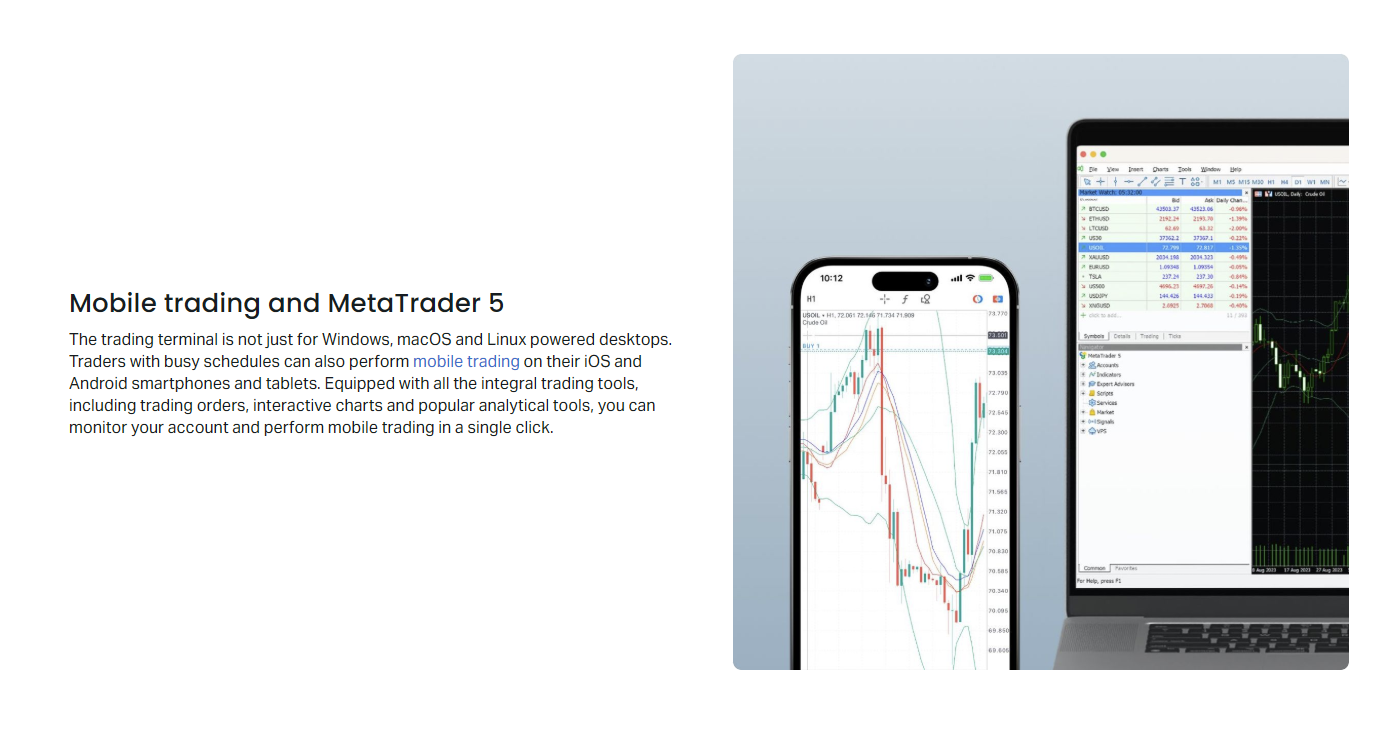
Mobile installation follows standard app store procedures. Search for 'MetaTrader 5' published by MetaQuotes Software Corp, not third-party developers. The Exness-branded version simply pre-configures server addresses; the standard MetaQuotes build works identically after manual server entry. Enable push notifications for price alerts, margin calls, and order execution confirmations.
- Open App Store (iOS) or Google Play Store (Android)
- Search for 'MetaTrader 5' by MetaQuotes Software Corp
- Install the official application (approx. 100-150 MB)
- Launch app and tap 'Login to existing account'
- Enter 'Exness' in server search field
- Select Exness-MT5-Real or Exness-MT5-Demo server
- Input your login credentials from Personal Area
- Enable biometric authentication for quick access
- Configure push notifications in app settings
Key Features of Exness MT5 Platform
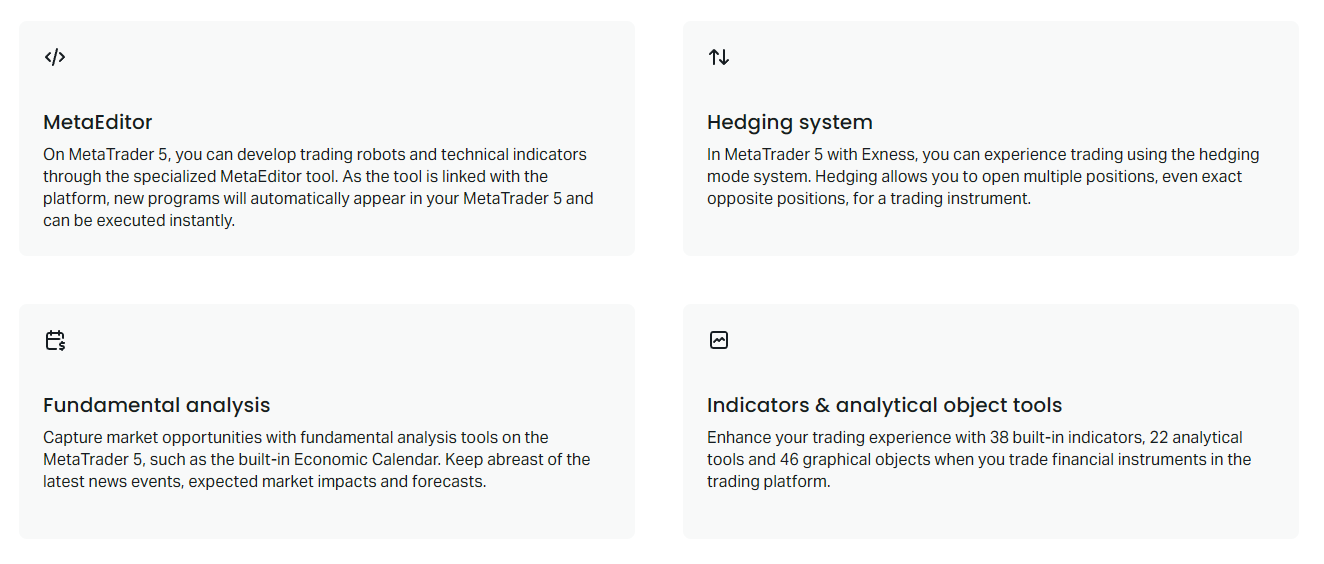
Exness MT5 delivers a feature set that caters to discretionary traders, algorithmic developers, and copy trading participants alike. The platform's modular design allows customization through the Market, Signals, and Code Base tabs, each hosting thousands of free and paid additions. Understanding core capabilities helps you leverage the platform fully.
The Strategy Tester stands out for algorithmic traders, offering multi-threaded optimization across historical data with visual backtesting mode. Exness provides extensive tick history for major instruments, enabling realistic EA validation. The tester supports forward testing on demo accounts, bridging the gap between historical simulation and live conditions.
Scroll horizontally to see all columns
| Feature | MetaTrader 4 | MetaTrader 5 | Exness Advantage |
|---|---|---|---|
| Timeframes | 9 | 21 | Full history on all TFs |
| Order Types | 4 pending types | 6 pending types | Stop Limit orders supported |
| Position Accounting | Hedging only | Hedging + Netting | Flexible for all strategies |
| Market Depth (DOM) | Not available | Full Level 2 | Raw spread visibility |
| Economic Calendar | External only | Built-in | Exness news integration |
| Strategy Tester | Single-threaded | Multi-threaded + Cloud | Free VPS for qualifying accounts |
| Programming Language | MQL4 | MQL5 (OOP) | Modern development environment |
| Exchange Instruments | Limited | Native support | Stocks, futures, options |
Connecting Your Exness Account to MT5
After installation, connecting your Exness trading account requires the login credentials found in your Personal Area. Each account type (Standard, Pro, Raw Spread, Zero) generates distinct login numbers for MT5. Demo accounts use separate server addresses from live accounts, preventing accidental real-money trading during testing.
- Log into Exness Personal Area at exness.com
- Navigate to My Accounts section
- Select the desired MT5 account (demo or live)
- Copy the Login (account number) and Server name
- Open MT5 and click File > Login to Trade Account
- Paste login number and select correct server from dropdown
- Enter your trading password (not Personal Area password)
- Check 'Save password' for automatic future logins
- Click OK and verify connection in bottom status bar
Multiple accounts can be saved in the Navigator window for quick switching. Right-click Accounts in Navigator and select 'Open an Account' to add additional logins. The platform remembers server addresses, so subsequent connections require only password entry. For security, avoid saving passwords on shared devices.
Troubleshooting Common Exness MT5 Issues
Even with proper installation, traders occasionally encounter connectivity, performance, or functionality problems. Most issues stem from network configuration, antivirus interference, or outdated platform builds. Systematic troubleshooting resolves the vast majority of cases without requiring support escalation.
- Connection failed: Verify internet, try alternate server IP, check firewall
- Invalid account: Confirm login number matches MT5 account (not MT4)
- No quotes updating: Right-click Market Watch > Show All, check subscription
- Charts not loading: Delete history folder in MT5 data directory, restart
- EA not trading: Enable AutoTrading button, check Experts tab for errors
- Slow performance: Reduce max bars in history, disable unused indicators
- Mobile sync issues: Log out and back in, clear app cache, reinstall
- Mac Wine crashes: Update Crossover/PlayOnMac, allocate more RAM to bottle
Platform updates occur automatically on restart, but major version upgrades may require manual reinstallation. Exness announces significant MT5 updates through email and Personal Area notifications. Keeping the platform current ensures compatibility with server-side changes and security patches.
Exness MT5 vs Web Terminal Comparison
Exness offers both downloadable MT5 and browser-based Web Terminal. Each serves different trading styles and access requirements. The Web Terminal requires no installation, works on any device with a modern browser, and synchronizes seamlessly with MT5 desktop and mobile. However, it lacks certain advanced features available only in the native application.
Scroll horizontally to see all columns
| Capability | MT5 Desktop/Mobile | Exness Web Terminal |
|---|---|---|
| Installation Required | Yes | No |
| Expert Advisors | Full support | Not supported |
| Custom Indicators | Unlimited | Limited built-in only |
| Strategy Tester | Full backtesting | Not available |
| Market Depth (DOM) | Full Level 2 | Basic depth view |
| Timeframes | All 21 | 9 main timeframes |
| Chart Templates | Save/load unlimited | Basic save only |
| Offline Charts | Supported | Not available |
| Push Notifications | Native mobile push | Browser notifications |
| Multi-account Management | Simultaneous connections | Single account per session |
The choice between MT5 and Web Terminal often reflects a trader's workflow: algorithmic and multi-screen analysts need the desktop power, while discretionary traders valuing accessibility prefer the browser version.
Final Assessment of Exness MT5 Platform
Exness MT5 delivers a professional-grade trading environment that matches the broker's competitive pricing and execution quality. The download and installation process, while straightforward, rewards attention to detail — particularly regarding server selection, account type matching, and platform configuration. Windows users enjoy the most seamless experience, Mac users have viable workarounds, and mobile traders receive a genuinely capable pocket terminal. The platform's depth of features, from advanced charting to algorithmic trading infrastructure, scales with trader development from beginner to institutional-level operations.
Frequently Asked Questions
Where do I find the official Exness MT5 download link?
Log into your Exness Personal Area, navigate to Trading Platforms, and select MetaTrader 5. The Windows, macOS (via compatibility layer), and mobile download links are all provided there with pre-configured server settings.
Can I use my existing MT4 account on MT5?
No, MT4 and MT5 use separate account structures. You must open a dedicated MT5 account in your Personal Area. Exness allows unlimited demo accounts and multiple live accounts across both platforms.
Does Exness MT5 support automated trading with Expert Advisors?
Yes, Exness MT5 fully supports Expert Advisors written in MQL5. The broker also provides free VPS hosting for qualifying accounts, enabling 24/7 EA operation without keeping your computer running.
What is the difference between Exness MT5 demo and real servers?
Demo servers (Exness-MT5-Trial) use simulated pricing and execution for practice. Real servers (Exness-MT5-Real) connect to live market liquidity with actual financial risk. Always verify the server name before funding or trading live.
How do I update Exness MT5 to the latest version?
MT5 checks for updates automatically on startup. You can also manually trigger an update via Help > Check for Updates. Major version upgrades may require downloading a new installer from the Exness website.
Can I trade stocks and cryptocurrencies on Exness MT5?
Yes, Exness MT5 provides access to stock CFDs, cryptocurrency CFDs, forex, commodities, indices, and energies. The platform's native multi-asset support handles all instrument types within a single interface.
Is the Exness MT5 mobile app different from the standard MetaQuotes MT5 app?
Functionally identical. The Exness-branded version simply pre-loads Exness server addresses. The standard MetaQuotes MT5 app from App Store or Google Play works perfectly after manually entering Exness server details.