

Mobile Trading Platforms
Exness MT4 Mobile Trading App Guide
Learn setup, features, charting tools, order management, and security for mobile MetaTrader 4 trading.


Forex Analyst
Forex Analyst specializing in currency markets, market trends, technical and fundamental analysis, and providing clear insights to help traders make informed decisions.
The Exness MT4 Mobile application brings the full power of MetaTrader 4 to smartphones and tablets, allowing traders to access global markets from anywhere with an internet connection. This mobile terminal retains the core functionality of the desktop platform while adapting the interface for touch-based navigation and smaller screens. Traders can analyze charts, execute trades, manage positions, and monitor account metrics without being tied to a computer. The app supports both Android and iOS operating systems, providing a consistent experience across devices. For active traders who need to react quickly to market movements, the mobile platform offers real-time quotes, instant execution, and push notifications for price alerts and margin calls.
Contents
- Getting Started with Exness MT4 Mobile
- Key Features of the MT4 Mobile App
- Installing MT4 on Android Devices
- Installing MT4 on iOS Devices
- Navigating the Mobile Trading Interface
- Advanced Charting Tools on Mobile
- Managing Orders and Positions
- Account Management Features
- Security and Data Protection
- Performance and Connectivity
- Troubleshooting Common Issues
- Final Assessment of Exness MT4 Mobile
MetaTrader 4 remains one of the most widely used trading platforms in the retail forex industry, known for its stability, extensive indicator library, and support for automated trading through Expert Advisors. The Exness implementation adds broker-specific optimizations including raw spread pricing, commission-based account options, and seamless integration with the Exness Personal Area for deposits, withdrawals, and account management. The mobile version preserves compatibility with custom indicators and scripts developed for the desktop platform, though Expert Advisor functionality is limited on mobile due to operating system restrictions. Understanding the capabilities and limitations of the mobile terminal helps traders decide when to use it as a primary tool versus a supplementary monitoring device.
This guide covers the complete workflow from initial download through advanced feature utilization. We examine installation procedures for both major mobile operating systems, explore the charting and analysis toolkit, detail order entry and position management workflows, and review account administration features accessible within the app. Security considerations, performance optimization tips, and troubleshooting guidance round out the practical knowledge needed to trade confidently on Exness MT4 Mobile. Whether you are new to mobile trading or transitioning from desktop MetaTrader 4, this resource provides the detailed information required to maximize the platform's potential.
Getting Started with Exness MT4 Mobile
The first step to trading on Exness MT4 Mobile is obtaining the application from an official source. Exness provides direct download links through their website and the Exness Personal Area, ensuring traders receive the authentic broker-branded version with pre-configured server settings. The app is also available on the Google Play Store for Android devices and the Apple App Store for iOS devices. Downloading from official app stores provides automatic update notifications and the security vetting inherent to those platforms. The Exness-branded version includes the broker's trading servers pre-loaded in the server selection list, eliminating the need to manually enter server addresses or port numbers during initial login.
- Visit the Exness website or log into your Personal Area to find the official MT4 Mobile download links
- Select the appropriate version for your device operating system (Android APK or iOS App Store)
- Install the application following standard device procedures for app installation
- Launch the app and choose "Login to an existing account" or "Open a demo account"
- Enter your Exness MT4 account credentials: login number, password, and select the correct server
- Complete any two-factor authentication if enabled on your Exness account
- Verify connection by checking that real-time quotes appear in the Market Watch window
Key Features of the MT4 Mobile App
Exness MT4 Mobile delivers a comprehensive feature set that covers the essential needs of active traders. The application includes real-time streaming quotes for all instruments offered by Exness, including forex pairs, metals, energies, indices, stocks, and cryptocurrencies. Interactive charts support nine timeframes from one minute to monthly, with pinch-to-zoom gesture control for detailed price action examination. Thirty built-in technical indicators and twenty-four analytical objects provide extensive chart analysis capabilities directly on the mobile device. The app supports all standard order types including market execution, pending orders (buy limit, sell limit, buy stop, sell stop), and stop loss/take profit attachment at order entry or modification.
- Real-time streaming quotes with bid/ask prices and spread display for all Exness instruments
- Interactive charts with nine timeframes and gesture-based navigation controls
- Thirty technical indicators including Moving Averages, RSI, MACD, Bollinger Bands, and Stochastic
- Twenty-four analytical objects: trend lines, channels, Fibonacci retracements, and Gann tools
- Full order management: market orders, pending orders, stop loss, take profit, and trailing stop
- Trade history and journal tabs for reviewing past performance and system messages
- Push notifications for price alerts, margin calls, and order execution confirmations
- Offline mode chart viewing with cached data when internet connection is temporarily lost
- Multi-language interface supporting over thirty languages including English, Chinese, Arabic, and Spanish
- Dark and light theme options for comfortable viewing in different lighting conditions
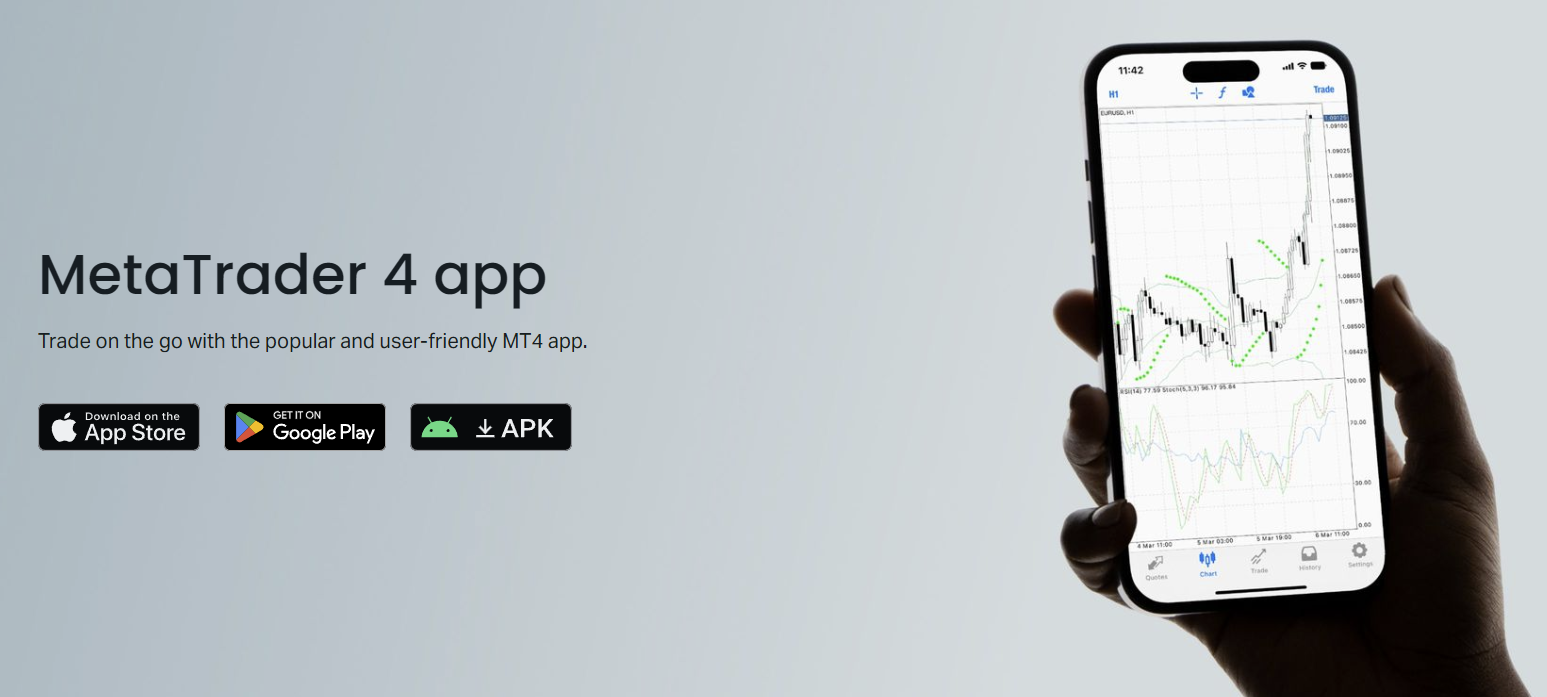
The download screen illustrates the straightforward access Exness provides for mobile traders. Both Android and iOS versions are prominently displayed with direct links to the respective app stores. The Android version downloads as an APK file when obtained directly from the Exness website, which requires enabling installation from unknown sources in device settings. The iOS version redirects to the Apple App Store where standard installation procedures apply. Both versions are free to download and use with any Exness live or demo account.
Installing MT4 on Android Devices
Android installation follows a standard process whether downloading from the Google Play Store or directly from the Exness website as an APK file. The Play Store version offers automatic updates and Google Play Protect scanning, while the direct APK download ensures immediate access to the latest version without potential regional store restrictions. For APK installations, users must temporarily enable "Install unknown apps" permission for the browser or file manager used to download the file. This permission should be disabled after installation for security. The Exness MT4 Android app requires Android 5.0 (Lollipop) or higher and approximately 100 MB of free storage space for installation, with additional space needed for cached chart data and log files.
- Open Google Play Store and search for "MetaTrader 4" or use the direct Exness link from the website
- Verify the publisher is "MetaQuotes Software Corp." for the official generic version or "Exness" for the branded version
- Tap Install and wait for download and automatic installation to complete
- If using Exness website APK: download the file, open it from notifications or file manager, and confirm installation
- Grant necessary permissions: storage access for chart caching, network access for market data
- Launch the app and proceed to login with Exness MT4 credentials
- Enable auto-update in Play Store settings to receive future versions automatically
Installing MT4 on iOS Devices
iOS installation is streamlined through the Apple App Store, which handles all security verification and update management automatically. The Exness MT4 iOS app requires iOS 12.0 or later and is compatible with iPhone, iPad, and iPod touch devices. The App Store version is identical in functionality to the Android counterpart, with interface adaptations for iOS design guidelines including native navigation patterns and haptic feedback support. Apple's sandbox security model means the app cannot access files outside its container, so importing custom indicators or Expert Advisors requires using the iTunes File Sharing feature or the Files app with the MetaTrader 4 desktop terminal for synchronization. The app size is approximately 150 MB on iOS.
- Open the App Store on your iPhone or iPad
- Search for "MetaTrader 4" or use the direct link from the Exness website or Personal Area
- Confirm the developer is MetaQuotes Software Corp. and download the free app
- Authenticate with Face ID, Touch ID, or Apple ID password as required
- Wait for installation to complete, then launch the app from the home screen
- Select "Login to an existing account" and enter your Exness MT4 credentials
- Allow push notifications when prompted to receive price alerts and margin warnings
- Enable automatic app updates in Settings > App Store for seamless future updates
The main interface displays the four primary navigation tabs at the bottom: Quotes, Charts, Trade, and History. The Quotes tab shows the Market Watch window with real-time bid and ask prices for selected instruments. The Charts tab provides full-screen charting with indicator and drawing tool access. The Trade tab displays open positions, pending orders, and account summary including balance, equity, margin, and free margin. The History tab shows closed trades with profit/loss details. The top toolbar provides quick access to account switching, settings, and the add-instrument button. This tab-based layout optimizes screen real estate on mobile devices while keeping core functions one tap away.
Navigating the Mobile Trading Interface
Efficient navigation is critical for mobile trading where screen space is limited and market conditions change rapidly. The Exness MT4 Mobile interface uses a tab bar at the bottom for primary navigation, contextual menus accessed via long-press or three-dot icons, and gesture controls for chart manipulation. The Quotes tab allows customization of the instrument list through the edit button, letting traders create a focused watchlist of their most-traded pairs. Swiping left on a quote reveals quick-action buttons for new order, chart, and depth of market. The Charts tab supports horizontal swiping between multiple open charts when several are loaded. Understanding these navigation patterns reduces the time needed to execute routine tasks and minimizes errors during fast-moving markets.
Scroll horizontally to see all columns
| Tab | Primary Function | Key Actions |
|---|---|---|
| Quotes | Market Watch window | View prices, add/remove symbols, quick order, open chart |
| Charts | Technical analysis | Apply indicators, draw objects, change timeframes, zoom |
| Trade | Position management | Monitor open trades, modify SL/TP, close positions, view account info |
| History | Trade journal | Review closed trades, filter by date, export reports |
Advanced Charting Tools on Mobile
Chart analysis on Exness MT4 Mobile is surprisingly robust given the screen constraints. The charting engine renders price data using the same algorithms as the desktop platform, ensuring consistency in indicator calculations and graphical object placement. Traders can apply multiple indicators simultaneously, each with customizable parameters, colors, and line styles. The indicator list includes trend-following tools like Moving Averages and Ichimoku Kinko Hyo, oscillators like RSI, Stochastic, and MACD, volume-based indicators, and Bill Williams' suite of indicators. Drawing tools support trend lines, horizontal lines, vertical lines, channels, Fibonacci retracement and expansion, Andrew's Pitchfork, and text labels. All objects can be moved, resized, or deleted through touch interaction.
- Nine timeframes: M1, M5, M15, M30, H1, H4, D1, W1, MN accessible via toolbar button
- Three chart types: candlestick, bar, and line charts selectable from chart settings
- Pinch-to-zoom for price and time axis scaling, two-finger drag for panning across history
- Crosshair mode for precise price/time coordinate reading on any chart point
- Indicator management: add, remove, configure parameters, change visual style per indicator
- Template saving: save indicator/object combinations as templates for quick application
- Screenshot capture and sharing directly from the chart context menu
- Full-screen chart mode hides tab bar for maximum viewing area during analysis
The features panel demonstrates the depth of analytical tools available on the mobile platform. Indicators are organized by category: Trend, Oscillators, Volumes, and Bill Williams. Each indicator opens a configuration dialog matching the desktop version's parameter options. Drawing tools appear in a scrollable palette with icons representing each object type. The chart settings menu controls visual properties including color schemes (green/red or black/white for bullish/bearish candles), grid display, volume display, and chart shift/autoscroll behavior. Traders can also enable the "Show ask line" option to visualize the ask price alongside the default bid-based chart, which is particularly useful for spread monitoring during volatile sessions.
Managing Orders and Positions
Order entry on Exness MT4 Mobile is designed for speed and accuracy. The New Order screen can be accessed from multiple entry points: the plus button on the Quotes tab, the trade button on a chart, or the new order button on the Trade tab. The order screen defaults to the currently selected instrument but allows quick symbol switching. Volume is entered in lots with a numeric keypad, and the app displays the margin required for the specified volume based on current leverage and instrument specifications. Stop Loss and Take Profit fields accept price values or point distances from the current price, with a toggle to switch between modes. The one-click trading panel, enabled in settings, adds buy/sell buttons directly to the chart and quote screens for fastest execution.
- Market Execution: instant fill at best available price with optional SL/TP attachment
- Buy Limit: pending order to buy below current market price at specified level
- Sell Limit: pending order to sell above current market price at specified level
- Buy Stop: pending order to buy above current market price at specified level
- Sell Stop: pending order to sell below current market price at specified level
- Stop Loss: protective order to limit loss, adjustable after position opening
- Take Profit: target order to secure profit, adjustable after position opening
- Trailing Stop: dynamic stop loss that follows price at fixed point distance (server-side)
- Modify Position: change SL/TP, adjust volume for partial close, extend expiration on pending orders
- Close Position: full or partial closure at market price with confirmation dialog
Account Management Features
The Trade tab serves as the account dashboard, displaying real-time account metrics alongside open positions. Key figures include Balance (closed trade equity), Equity (balance plus floating profit/loss), Margin (funds held as collateral for open positions), Free Margin (equity minus margin available for new trades), and Margin Level (equity divided by margin expressed as percentage). These metrics update in real-time with each price tick. The account summary also shows the account currency, leverage ratio, and server name. Tapping the account info area reveals additional details including the account number, account type (Standard, Pro, Raw Spread, Zero), and the Exness trading server assigned. For traders managing multiple MT4 accounts, the account switcher at the top of the screen allows rapid switching without re-entering credentials.
- Real-time account metrics: Balance, Equity, Margin, Free Margin, Margin Level
- Account information: login, server, leverage, account type, currency
- Quick account switching between multiple MT4 accounts on the same device
- Deposit and withdrawal shortcuts linking to Exness Personal Area web interface
- Leverage adjustment request submission (subject to Exness approval and account equity)
- Password change for master and investor (read-only) passwords
- Trading history export in HTML or CSV format for external analysis
- Statement generation for custom date ranges with detailed transaction breakdown
- Margin call and stop out level visibility for risk monitoring
The mobile trading experience screenshot illustrates how the platform adapts to smartphone form factors. The chart occupies the majority of the screen in landscape orientation, with the tab bar accessible via swipe-up gesture. The on-screen keyboard appears only when needed for numeric input, maximizing chart visibility during analysis. The interface scales appropriately for different screen sizes from compact phones to large tablets, maintaining touch target sizes that meet accessibility guidelines. Exness has optimized the app for both portrait and landscape orientations, with landscape providing the most chart real estate for technical analysis. The app also supports split-screen multitasking on compatible Android devices and iPadOS, allowing traders to run a chart alongside a news feed or calculator.
Security and Data Protection
Security is paramount for any financial application handling real money and sensitive personal data. Exness MT4 Mobile implements multiple layers of protection. The connection to Exness trading servers uses TLS 1.2 encryption for all data transmission, including login credentials, market data, and order instructions. Account passwords are never stored on the device in plain text; the app uses secure keychain/keystore storage provided by the operating system. Biometric authentication (Face ID, Touch ID, fingerprint) can be enabled as an additional gate before the app unlocks, preventing unauthorized access if the device is lost or stolen. The app also supports two-factor authentication integration with the Exness Personal Area, requiring a time-based one-time password or SMS code during login.
Performance and Connectivity
Mobile trading performance depends on several factors: device hardware capabilities, network quality, and Exness server proximity. The MT4 Mobile app is optimized for efficient resource usage, but older devices with limited RAM may experience slower chart rendering when multiple indicators are applied. Network latency directly affects order execution speed; Exness operates data centers in major financial hubs including London, New York, Tokyo, and Singapore. Traders should connect to the server with lowest ping, which the app displays during server selection. Mobile data connections (4G/5G) generally provide lower latency than congested public Wi-Fi. The app includes a connection quality indicator in the status bar showing signal strength and ping time to the trading server.
Scroll horizontally to see all columns
| Factor | Impact | Optimization Tip |
|---|---|---|
| Device RAM | Chart rendering speed | Close background apps, limit concurrent charts to 2-3 |
| Network latency | Order execution delay | Use 5G/4G over Wi-Fi, select nearest Exness server |
| Indicator count | CPU usage and battery | Use only essential indicators, disable unused ones |
| Chart history depth | Memory consumption | Limit max bars in history settings to 5000-10000 |
| OS version | Compatibility and security | Keep Android/iOS updated to latest supported version |
Troubleshooting Common Issues
Even well-designed applications encounter issues. Common problems with Exness MT4 Mobile include connection failures, quote freezing, chart loading errors, and login difficulties. Most issues resolve with basic troubleshooting steps. Connection problems often stem from network restrictions (corporate firewalls, country-level blocks) or server maintenance windows. Quote freezing typically indicates a temporary network interruption; the app attempts automatic reconnection. Chart loading errors may result from corrupted cache data, which clearing the app cache resolves. Login failures usually involve incorrect credentials, wrong server selection, or expired passwords. The app's journal tab (accessible via settings) logs system events and error codes useful for support diagnosis.
- No connection: check internet, try switching between Wi-Fi and mobile data, verify server status
- Quotes not updating: pull-to-refresh on Quotes tab, restart app, check for app updates
- Charts blank: clear chart cache in settings, reduce max bars in history, reopen chart
- Login failed: verify login/password, ensure correct server (Exness-MT4-Real or Exness-MT4-Demo)
- Order rejected: check margin level, verify market hours, confirm sufficient free margin
- App crashes: update to latest version, restart device, reinstall app if persistent
- Push notifications not working: enable in device settings and app settings, check Do Not Disturb
- Biometric login fails: re-register biometric in app settings, ensure device biometrics enrolled
The mobile terminal is not a reduced version of the desktop platform—it is a purpose-built tool that excels at monitoring, quick execution, and position management, while desktop remains superior for deep multi-timeframe analysis and automated strategy development.
Frequently Asked Questions
Can I use Expert Advisors on Exness MT4 Mobile?
No, Expert Advisors cannot run directly on the mobile app due to operating system restrictions. EAs must run on the desktop terminal or a VPS. The mobile app can monitor EA-managed positions but cannot start or stop automated strategies.
How do I install custom indicators on the MT4 Mobile app?
Custom indicators cannot be directly installed on the mobile app. Only the 30 built-in indicators are available. For custom indicator analysis, use the desktop MT4 platform and view the charts on mobile for monitoring.
Does Exness MT4 Mobile support hedging and netting modes?
Exness MT4 accounts operate in hedging mode by default, allowing multiple positions in opposite directions on the same instrument. Netting mode is not available on MT4; it is an MT5 feature.
Can I trade all Exness instruments on MT4 Mobile?
Yes, all instruments available on your Exness MT4 account type are tradable on the mobile app, including forex, metals, energies, indices, stocks, and cryptocurrencies, subject to market hours.
Is there a difference between the Exness-branded MT4 and the generic MetaQuotes version?
The Exness-branded version comes with Exness trading servers pre-configured in the server list. Functionally, both versions are identical as they use the same MetaQuotes core. The generic version requires manual server entry.
How do I switch between demo and live accounts on the mobile app?
Tap the account info area at the top of the Trade tab, then select "Login to an existing account." Enter the credentials for the other account type. The app remembers recent accounts for quick switching.
What happens to my charts and settings if I uninstall the app?
Chart templates, indicator settings, and drawing objects are stored locally on the device. Uninstalling the app deletes this data. Export templates from desktop MT4 and reapply them after reinstalling, or use the same Apple/Google account for potential backup restoration.
Final Assessment of Exness MT4 Mobile
Exness MT4 Mobile delivers a professional-grade mobile trading experience that successfully translates the core MetaTrader 4 functionality to a touch-first interface. The platform excels at its intended purpose: providing traders with reliable market access, comprehensive charting, and full position management capabilities from a smartphone or tablet. The integration with Exness infrastructure ensures low-latency execution, accurate pricing, and seamless account administration. While it cannot replace the desktop terminal for advanced analytical work or automated trading, it serves as an indispensable companion for active traders who need market connectivity beyond their desk. The app's stability, feature completeness, and regular updates reflect Exness's commitment to mobile traders. For anyone trading with Exness on MetaTrader 4, installing and mastering the mobile app is a practical necessity in today's 24-hour markets.