
Trading Platforms
Exness Trading Platforms: MT4, MT5, Web Terminal & Mobile Apps
Compare Exness MT4, MT5, web terminal, and mobile trading apps to choose the best platform for your strategy.

Forex Analyst
Forex Analyst specializing in currency markets, market trends, technical and fundamental analysis, and providing clear insights to help traders make informed decisions.
Exness provides traders with a comprehensive suite of trading platforms designed to accommodate different experience levels, trading styles, and device preferences. The broker supports the industry-standard MetaTrader 4 and MetaTrader 5 platforms, a proprietary web-based terminal, and dedicated mobile applications for iOS and Android. Each platform offers access to the full range of Exness trading instruments including forex pairs, metals, energies, indices, stocks, and cryptocurrencies.
Contents
- MetaTrader 4 on Exness: Features and Setup
- MT4 Charting Tools and Technical Analysis
- MetaTrader 5 on Exness: Enhanced Capabilities
- MT5 Advantages Over MT4 for Exness Traders
- Exness Web Terminal: Browser-Based Trading
- Web Terminal Features and Limitations
- Exness Mobile Trading Apps: iOS and Android
- Exness Trade App: Purpose-Built Mobile Experience
- Platform Installation and Configuration Guide
- Windows Installation Steps for MT4 and MT5
- Configuring Charts, Templates, and Profiles
- Instrument Availability Across Platforms
- Forex, Metals, and Energies Coverage
- Account Types and Platform Compatibility
- Demo Accounts and Platform Testing
- Transitioning from Demo to Live Trading
- Execution Quality and Trading Conditions
- VPS Hosting for Automated Strategies
- Analytical Tools and Trading Signals
- Trading Calculator and Risk Management Tools
- Platform Security and Data Protection
- Troubleshooting Common Platform Issues
- Login Failures and Account Access
- Mobile App Sync and Notification Issues
- Final Assessment of Exness Trading Platforms
Choosing the right platform depends on factors such as preferred analysis tools, execution speed requirements, device compatibility, and whether you need advanced algorithmic trading capabilities. This guide examines each Exness trading platform in detail, covering installation procedures, key features, instrument availability, and practical considerations for live and demo trading.
All Exness platforms connect to the same pricing engine and liquidity pool, ensuring consistent spreads, swap rates, and execution quality regardless of which terminal you use. Account credentials work across every platform, allowing seamless switching between desktop, web, and mobile interfaces without reconfiguring settings or reloading templates.
MetaTrader 4 on Exness: Features and Setup
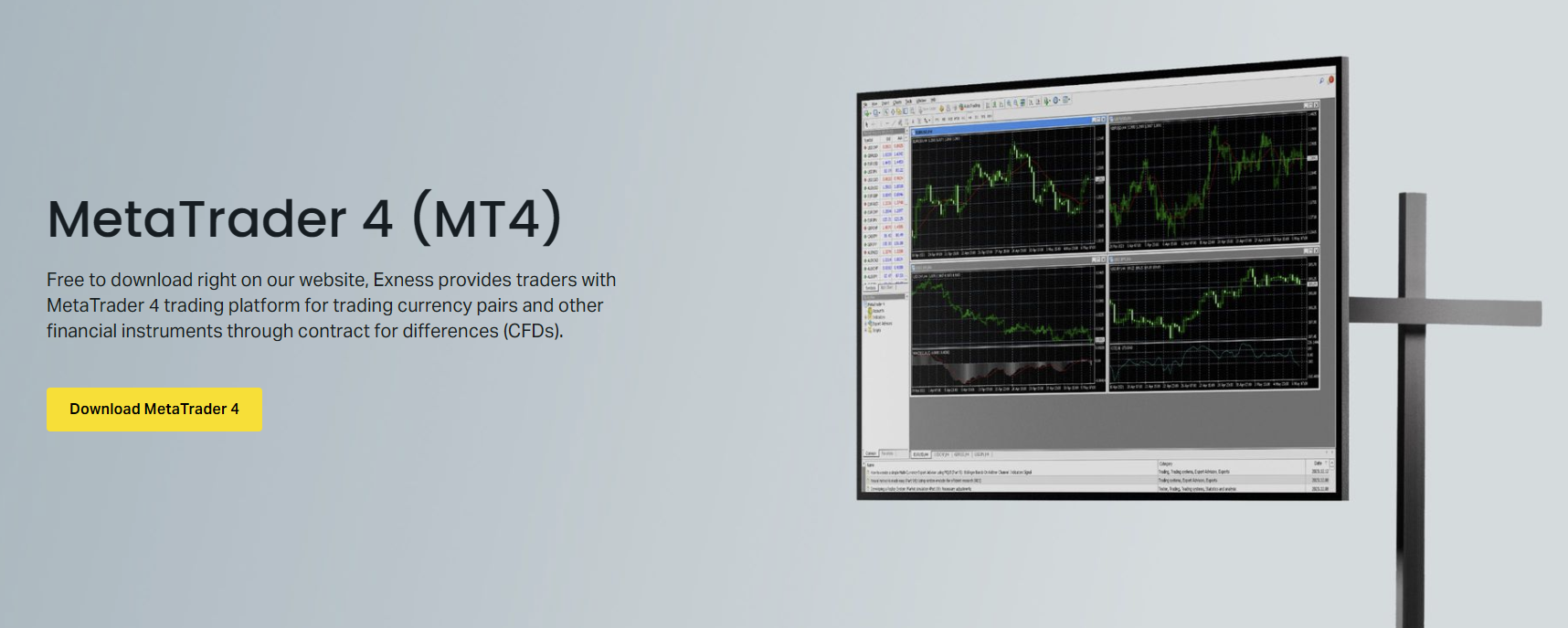
MetaTrader 4 remains the most widely used retail trading platform globally, and Exness offers a fully customized MT4 build with optimized server connectivity. The Exness MT4 package includes pre-configured server addresses, eliminating manual connection steps. Traders can download the installer directly from the Exness personal area or the official website, with versions available for Windows and macOS.
The Exness MT4 installation process takes approximately two minutes on modern hardware. After downloading the executable file, run the installer and follow the standard wizard prompts. The installer automatically creates a Start Menu folder and desktop shortcut. On first launch, the platform prompts for login credentials — use your Exness account number, password, and select the appropriate server (Exness-MT4 Trial for demo or Exness-MT4 Real for live accounts).
MT4 Charting Tools and Technical Analysis
Exness MT4 provides nine timeframes ranging from one minute to monthly, thirty built-in technical indicators, and twenty-four graphical objects for trend lines, channels, Fibonacci retracements, and Gann tools. The platform supports custom indicators and Expert Advisors written in MQL4, allowing full algorithmic trading automation. Chart templates can be saved and applied across multiple symbols for consistent analysis workflows.
- Nine standard timeframes (M1 through MN)
- Thirty built-in technical indicators
- Twenty-four drawing and annotation tools
- Custom indicator and Expert Advisor support via MQL4
- Unlimited chart templates and profiles
- One-click trading from chart context menu
The Market Watch window displays real-time bid and ask prices for all available instruments. Right-clicking any symbol opens a context menu with options for new chart, new order, specification details, and tick chart. Exness MT4 supports market execution with no requotes on Standard and Pro accounts, while Raw Spread and Zero accounts use instant execution with tight fixed commissions.
MetaTrader 5 on Exness: Enhanced Capabilities
MetaTrader 5 represents the next generation of the MetaQuotes platform family, offering significant architectural improvements over MT4. Exness MT5 includes additional timeframes, more order types, an integrated economic calendar, and native support for exchange-traded instruments such as stocks and futures. The platform uses MQL5, a more powerful object-oriented programming language for custom development.
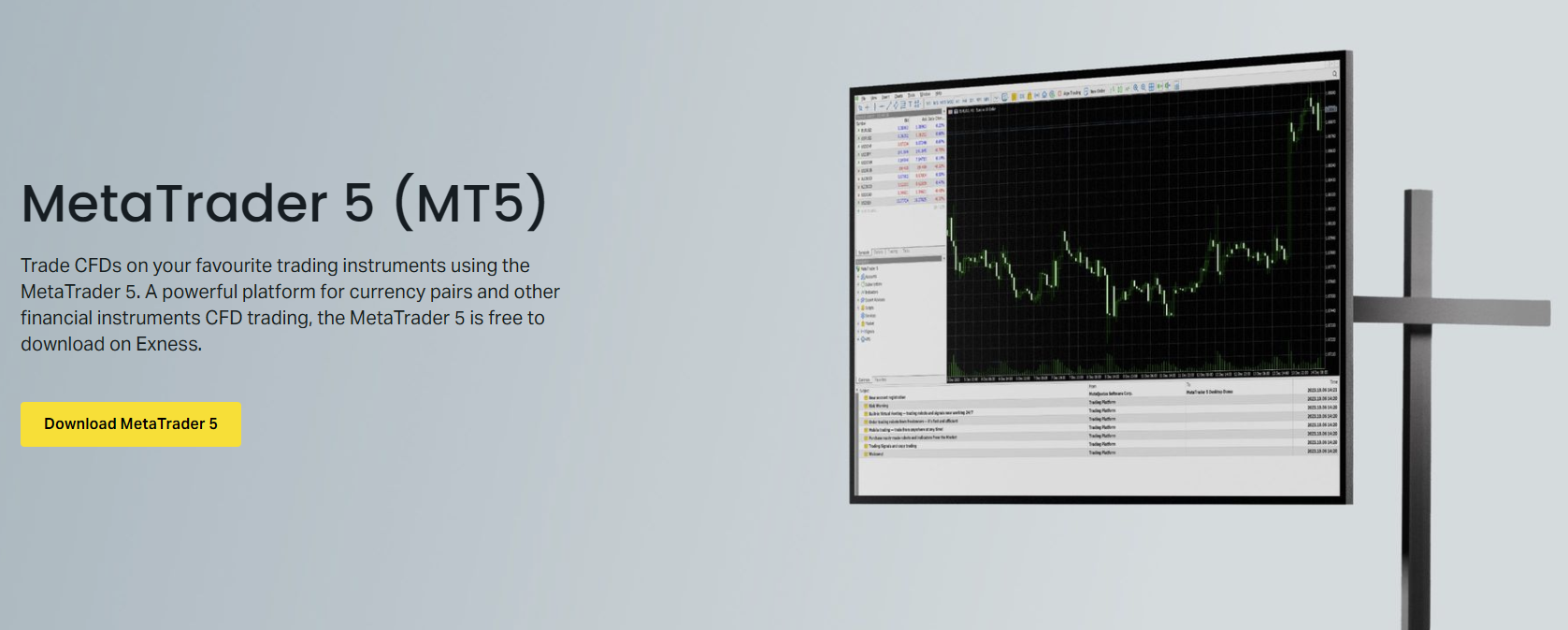
Downloading Exness MT5 follows the same process as MT4. The installer is available from the personal area under the Trading Platforms section. Separate builds exist for Windows and macOS. The macOS version runs through a Wine-based wrapper maintained by Exness, providing native-like performance without requiring Parallels or Boot Camp. Linux users can run either platform via Wine or use the web terminal as an alternative.
MT5 Advantages Over MT4 for Exness Traders
MT5 introduces twenty-one timeframes compared to MT4's nine, adding intermediate periods such as M2, M3, M4, M6, M10, M12, H2, H3, H6, H8, and H12. This granularity benefits scalpers and intraday traders who need precise candle alignment. The platform also supports six pending order types including buy stop limit and sell stop limit, enabling more sophisticated entry strategies.
Scroll horizontally to see all columns
| Feature | MetaTrader 4 | MetaTrader 5 |
|---|---|---|
| Timeframes | 9 | 21 |
| Pending Order Types | 4 | 6 |
| Technical Indicators | 30 built-in | 38 built-in |
| Graphical Objects | 24 | 44 |
| Programming Language | MQL4 | MQL5 (OOP) |
| Economic Calendar | External only | Integrated |
| Depth of Market | Not available | Full DOM support |
| Hedging Support | Native | Native (with netting option) |
| Strategy Tester | Single-threaded | Multi-threaded, cloud agents |
Depth of Market (DOM) in MT5 displays real-time liquidity levels for each price tier, showing available volume at bid and ask prices. This feature is particularly valuable for traders executing larger positions or analyzing order flow on major forex pairs and metals. The integrated economic calendar pulls event data directly into the platform, with impact ratings and actual versus forecast values visible without leaving the terminal.
Exness Web Terminal: Browser-Based Trading
The Exness Web Terminal provides full trading functionality directly in a browser without any software installation. Built on modern web technologies, it loads in seconds and works on Windows, macOS, Linux, and Chrome OS. The interface mirrors the desktop MetaTrader layout with Market Watch, chart workspace, navigator, and toolbox panels, making transition seamless for existing MT4/MT5 users.
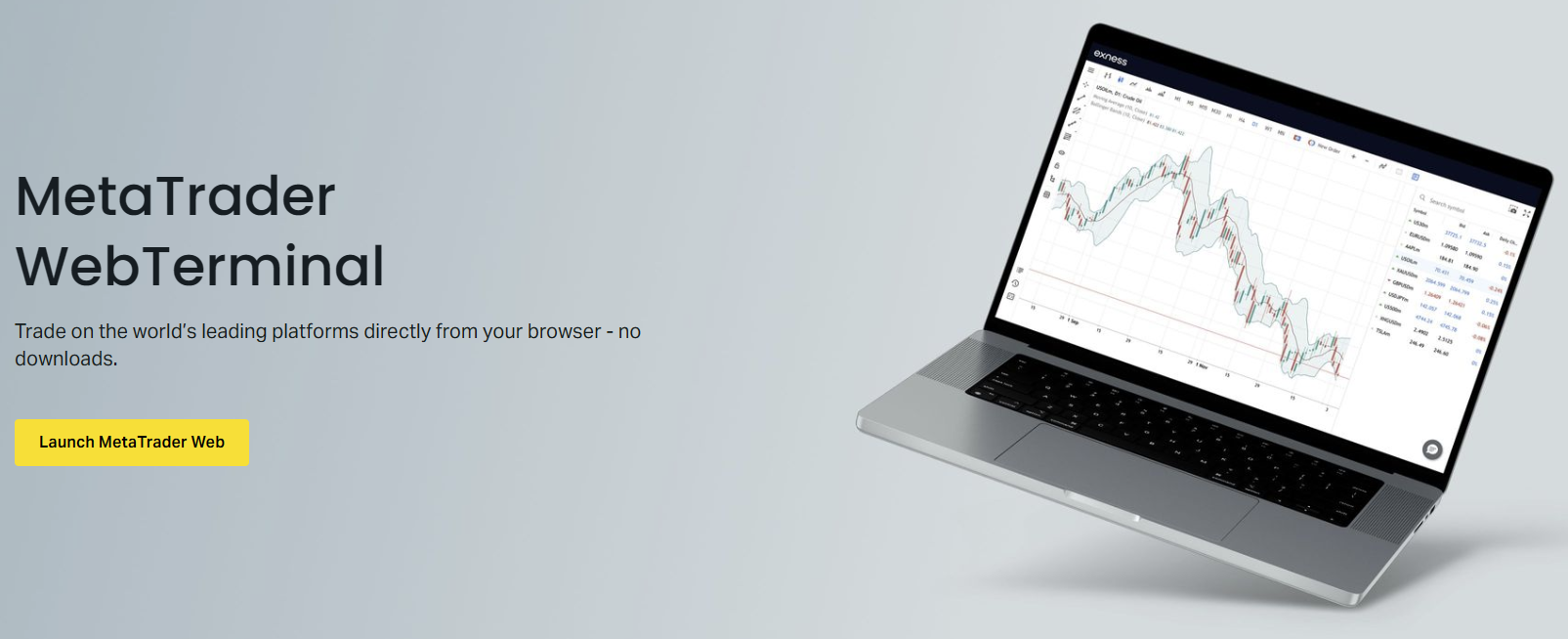
Accessing the web terminal requires only your Exness account credentials. Navigate to the Exness website, click the Web Terminal link, and enter your login details. The platform remembers your last used server (demo or real) and automatically reconnects on subsequent visits. No browser extensions or plugins are required, though pop-up blockers should allow the Exness domain for optimal functionality.
Web Terminal Features and Limitations
The web terminal supports all core trading operations: market and pending orders, position management with stop loss and take profit modification, one-click trading, and real-time profit/loss updates. Charting includes nine timeframes, over thirty indicators, and drawing tools comparable to the desktop platforms. Account history, trade reports, and journal logs are accessible within the interface.
- No installation required — runs in any modern browser
- Full trading functionality: market, limit, stop orders
- Nine timeframes and 30+ technical indicators
- Drawing tools: trend lines, channels, Fibonacci, shapes
- One-click trading panel with customizable lot sizes
- Real-time account equity, margin, and free margin display
- Trade history and detailed transaction reports
- Responsive design adapts to screen resolution
Current limitations compared to desktop platforms include no support for custom indicators or Expert Advisors, no strategy tester, and reduced keyboard shortcut coverage. The web terminal also cannot run multiple instances simultaneously in the same browser session. For algorithmic traders or those requiring extensive backtesting, the desktop MT4 or MT5 remains necessary.
The web terminal eliminates the friction of software installation while preserving professional-grade charting and order execution — ideal for traders who switch devices frequently or operate from restricted environments.
Exness Mobile Trading Apps: iOS and Android
Exness offers dedicated mobile applications for both MetaTrader 4 and MetaTrader 5, plus a proprietary Exness Trade app designed specifically for mobile-first workflows. All three apps are available on the Apple App Store and Google Play Store. The MetaTrader mobile apps provide near-parity with desktop functionality, while the Exness Trade app emphasizes streamlined account management, quick deposits, and simplified position monitoring.
The MetaTrader 4 and 5 mobile apps support interactive charts with nine timeframes, thirty technical indicators, and drawing tools. Push notifications deliver price alerts, margin calls, and order execution confirmations. The apps synchronize chart templates, indicator settings, and drawing objects with desktop versions when logged into the same account. Biometric authentication (Face ID, Touch ID, fingerprint) secures app access without repeated password entry.
Exness Trade App: Purpose-Built Mobile Experience
The Exness Trade app differs from the MetaTrader mobile apps by focusing on the complete trader lifecycle rather than pure chart analysis. The home screen displays account equity, open positions, and available margin at a glance. Deposit and withdrawal flows are integrated directly, supporting instant funding methods without leaving the app. Market news, economic calendar events, and trading signals from Trading Central appear in a dedicated insights feed.
- Unified dashboard: equity, positions, margin, free margin
- Integrated deposit/withdrawal with instant methods
- Trading Central signals and technical analysis feed
- Economic calendar with push notifications for high-impact events
- Instrument specifications and trading conditions reference
- Dark mode and customizable watchlists
- Biometric login and transaction confirmation
Charting in the Exness Trade app covers essential needs — candlestick, bar, and line charts with major indicators — but lacks the depth of MetaTrader mobile for advanced technical analysis. Traders who prioritize charting sophistication typically use MT4/MT5 mobile for analysis and Exness Trade for account operations. Both approaches are valid; the apps complement rather than compete.
Platform Installation and Configuration Guide
Setting up any Exness trading platform follows a consistent pattern. Begin by logging into your Exness Personal Area. Navigate to the Trading Platforms section where download links for all supported platforms are organized by operating system. Select the appropriate version for your device, download the installer or visit the app store, and authenticate with your trading account credentials.
Windows Installation Steps for MT4 and MT5
On Windows, the downloaded .exe file launches a standard installation wizard. Accept the license agreement, choose the installation directory (default is recommended), and select Start Menu folder options. The installer creates a desktop shortcut and registers the application for file associations. After installation completes, launch the platform and enter your account number, password, and server. The server list auto-populates with Exness-MT4 Trial, Exness-MT4 Real, Exness-MT5 Trial, and Exness-MT5 Real options.
- Download installer from Exness Personal Area
- Run .exe file as administrator for system-wide install
- Follow wizard prompts — default settings are optimal
- Launch platform and enter login credentials
- Select correct server: Trial for demo, Real for live
- Save password for auto-login on future launches
For macOS, the downloaded .dmg file mounts a disk image containing the application bundle. Drag the Exness MT4 or MT5 icon to the Applications folder. On first launch, macOS Gatekeeper may prompt for confirmation since the app is notarized but not distributed via the Mac App Store. Right-click the app and select Open to bypass this once. The Wine-based wrapper handles Windows library translation transparently.
Configuring Charts, Templates, and Profiles
After logging in, configure your workspace by arranging charts, applying indicators, and setting color schemes. Save the layout as a template (right-click chart → Template → Save Template) for quick application to new symbols. Profiles (File → Profiles → Save As) capture the entire window arrangement including multiple charts, Market Watch columns, and Navigator state. Exness platforms support unlimited templates and profiles, which sync across desktop installations when using the same account.
Scroll horizontally to see all columns
| Platform | Windows | macOS | Mobile | Web |
|---|---|---|---|---|
| MetaTrader 4 | Exness .exe installer | Exness .dmg (Wine) | App Store / Google Play | Not available |
| MetaTrader 5 | Exness .exe installer | Exness .dmg (Wine) | App Store / Google Play | Not available |
| Exness Web Terminal | Browser (any OS) | Browser (any OS) | Browser (any OS) | terminal.exness.com |
| Exness Trade App | Not available | Not available | App Store / Google Play | Not available |
The web terminal requires no download — simply visit the Exness website and click the Web Terminal button. For mobile apps, search "Exness" in the App Store or Google Play and verify the publisher is Exness Global Ltd before installing. Avoid third-party APK sites or unofficial mirrors, as modified builds may compromise account security.
Instrument Availability Across Platforms
All Exness trading platforms provide access to the same instrument universe, though display and specification details may vary slightly. The broker offers over 100 forex pairs including majors, minors, and exotics; spot metals (gold, silver, platinum, palladium); energies (crude oil, natural gas); major global indices; popular stocks from US, EU, and Asian exchanges; and a growing selection of cryptocurrency pairs.
Forex, Metals, and Energies Coverage
Forex trading on Exness platforms covers major pairs like EURUSD, GBPUSD, USDJPY with spreads from 0.0 pips on Raw Spread and Zero accounts. Minor and exotic pairs carry wider spreads reflecting lower liquidity. Spot metals include XAUUSD (gold), XAGUSD (silver), XPTUSD (platinum), and XPDUSD (palladium) with leverage up to 1:2000 on Standard accounts. Energies feature UKOIL (Brent), USOIL (WTI), and XNGUSD (natural gas) with competitive swap rates.
- 100+ forex pairs: majors, minors, exotics
- Spot metals: Gold, Silver, Platinum, Palladium
- Energies: Brent, WTI, Natural Gas
- Indices: 15+ global equity indices
- Stocks: 100+ shares from US, EU, Asia
- Cryptocurrencies: 20+ crypto pairs
Indices trading covers major benchmarks including US30 (Dow Jones), US500 (S&P 500), USTEC (Nasdaq 100), UK100 (FTSE 100), DE40 (DAX), FR40 (CAC 40), JP225 (Nikkei 225), and others. Stock CFDs include large-cap names like Apple, Tesla, Amazon, Microsoft, and European blue chips. Cryptocurrency pairs feature BTCUSD, ETHUSD, LTCUSD, XRPUSD, and major altcoins with 24/7 trading availability.
Instrument parity across platforms means your strategy and watchlists remain consistent whether you analyze on desktop MT5, execute via web terminal, or monitor positions on mobile.
Account Types and Platform Compatibility
Exness offers Standard, Standard Cent, Pro, Raw Spread, and Zero account types. All account types work on every platform — MT4, MT5, web terminal, and mobile apps. The primary differences lie in spread structure, commission model, minimum deposit, and available leverage. Standard and Standard Cent accounts use market execution with no commission. Pro accounts offer tighter spreads with market execution. Raw Spread and Zero accounts charge fixed commissions per lot with spreads from 0.0 pips.
Scroll horizontally to see all columns
| Account Type | Spreads From | Commission | Min Deposit | Platforms |
|---|---|---|---|---|
| Standard | 0.3 pips | None | $1 | All platforms |
| Standard Cent | 0.3 pips | None | $1 | All platforms |
| Pro | 0.1 pips | None | $200 | All platforms |
| Raw Spread | 0.0 pips | $3.5/lot/side | $200 | All platforms |
| Zero | 0.0 pips | $3.5/lot/side | $200 | All platforms |
Standard Cent accounts denominate balance in cents, allowing micro-lot trading with minimal capital — ideal for beginners transitioning from demo. Islamic (swap-free) versions of all account types are available for clients who cannot earn or pay interest due to religious principles. These accounts replace overnight swaps with fixed administration fees on positions held past rollover.
Demo Accounts and Platform Testing
Exness provides unlimited demo accounts across all platforms with virtual funds up to $100,000 (configurable during creation). Demo accounts replicate live trading conditions including spreads, execution speed, swap rates, and instrument availability. The only differences are that demo funds have no real value and certain promotional features may be restricted. Demo accounts never expire as long as they are accessed at least once every 30 days.
Creating a demo account takes less than a minute from the Personal Area. Select platform (MT4 or MT5), account type, leverage, and initial virtual balance. Credentials are generated instantly and work immediately on the corresponding platform. Traders can open multiple demo accounts simultaneously — for example, one MT4 Standard demo and one MT5 Raw Spread demo — to compare platforms and account types side by side.
Transitioning from Demo to Live Trading
When moving from demo to live, the platform interface remains identical. Only the server selection changes (from Trial to Real) and real funds are at risk. Exness recommends testing your exact strategy on demo for at least two weeks before going live, including periods of high volatility such as major news releases. Psychological factors — fear, greed, overconfidence — differ significantly when real capital is involved, even with identical technical conditions.
- Test strategy on demo for minimum two weeks
- Include major news events in demo testing period
- Use same account type and leverage planned for live
- Practice risk management: position sizing, stop losses
- Verify EA performance matches expectations
- Start live with smaller position sizes initially
Execution Quality and Trading Conditions
Exness emphasizes execution quality as a core differentiator. The broker operates a hybrid model combining ECN-style liquidity aggregation with internal matching for certain account types. Market execution on Standard and Pro accounts fills orders at the best available price with no requotes. Raw Spread and Zero accounts use instant execution with guaranteed fill at requested price or better, subject to commission. Average execution speed is under 25 milliseconds measured from order receipt to fill confirmation.
Slippage occurs naturally during high volatility or low liquidity periods. Exness platforms display slippage statistics in the trade history and journal tabs. The broker publishes monthly execution quality reports detailing fill rates, slippage distribution, and price improvement frequency. These reports are accessible from the Exness website and provide transparency uncommon among retail brokers.
VPS Hosting for Automated Strategies
Traders running Expert Advisors 24/7 can use Exness VPS hosting, which places a virtual server in the same data center as Exness trading servers. This minimizes network latency to under 1 millisecond, critical for latency-sensitive strategies. The VPS service is free for clients meeting minimum trading volume thresholds (typically 5 lots per month) or available for a monthly fee. Configuration includes pre-installed MT4 and MT5 with Exness server profiles.
VPS specifications include dedicated CPU cores, SSD storage, Windows Server OS, and 99.9% uptime SLA. Remote desktop access allows full control from any device. The VPS persists through local power outages, internet disruptions, or computer failures, ensuring EAs continue operating uninterrupted. This is essential for strategies that cannot tolerate downtime during Asian session or overnight hours.
Analytical Tools and Trading Signals
Exness platforms integrate several analytical resources directly into the trading environment. Trading Central provides technical analysis signals, key levels, and pattern recognition across major instruments. The economic calendar displays upcoming events with consensus forecasts, previous values, and volatility impact ratings. Market news from FXStreet delivers real-time headlines with currency-specific filtering.
Trading Central signals appear in the MT4/MT5 Navigator under the Signals tab and in the Exness Trade app insights feed. Each signal includes entry zone, stop loss, take profit levels, and a confidence rating. Signals cover forex, metals, indices, and major stocks. The web terminal surfaces Trading Central data in a dedicated panel alongside charts. These signals are educational tools — not trade recommendations — and should be validated against your own analysis.
Trading Calculator and Risk Management Tools
The Exness Trading Calculator helps traders compute position size, margin requirements, pip value, swap costs, and profit/loss projections before entering trades. Available on the web terminal, mobile apps, and as a standalone web tool, it supports all account types and instruments. Input your account currency, leverage, instrument, volume, and entry/exit prices to see detailed calculations including commission for Raw Spread and Zero accounts.
The calculator also includes a margin call and stop out simulator, showing the price level at which positions would be automatically closed based on current equity and margin. This helps traders set appropriate stop losses and avoid unexpected liquidation. The tool is especially valuable for cent accounts where pip values differ from standard accounts, and for high-leverage positions where small price moves significantly impact margin.
Pre-trade calculation separates disciplined risk management from gambling. The Exness calculator makes it effortless to know your exact risk, reward, and margin exposure before clicking buy or sell.
Platform Security and Data Protection
All Exness platforms use TLS 1.2+ encryption for data transmission between client terminals and trading servers. Login credentials are never stored in plain text on local devices. The web terminal implements Content Security Policy headers and undergoes regular penetration testing. Mobile apps use certificate pinning to prevent man-in-the-middle attacks on public Wi-Fi networks.
Two-factor authentication (2FA) adds a second verification layer for Personal Area access and withdrawal confirmations. Supported methods include authenticator apps (Google Authenticator, Authy), SMS codes, and email codes. 2FA is optional but strongly recommended. The Exness Trade app and mobile MetaTrader apps support biometric unlock (Face ID, Touch ID, fingerprint) as a convenience layer on top of password authentication.
- TLS 1.2+ encryption for all platform connections
- No plain-text credential storage on devices
- Certificate pinning on mobile apps
- Two-factor authentication for Personal Area
- Biometric unlock on mobile applications
- Regular third-party security audits
- Segregated client funds at top-tier banks
Troubleshooting Common Platform Issues
Connection problems are the most frequent platform issue. If MT4 or MT5 shows "No Connection" in the bottom right corner, first verify internet connectivity. Then check the Exness server status page or social media for announced maintenance. Try switching between available servers (e.g., Exness-MT4 Real to Exness-MT4 Real-2). Firewall or antivirus software may block the platform — add exceptions for terminal.exe and metaeditor.exe.
Login Failures and Account Access
Invalid account or password errors usually stem from typos, caps lock, or using the wrong server type (demo credentials on real server or vice versa). Copy credentials directly from the Personal Area to avoid transcription errors. If you changed your trading password recently, update it in the platform. Accounts inactive for 90+ days may be archived — contact support to reactivate. Forgotten passwords can be reset via the Personal Area login page.
- Verify internet connection and Exness server status
- Check correct server: Trial for demo, Real for live
- Copy-paste credentials from Personal Area
- Update platform after password change
- Contact support for archived accounts (>90 days inactive)
- Reset password via Personal Area if forgotten
Chart data gaps or missing candles often resolve by refreshing the chart (right-click → Refresh) or changing timeframe temporarily. If historical data is incomplete, use the History Center (Tools → History Center) to download missing bars. For persistent issues, delete the history folder in the platform data directory and restart — the platform will re-download clean data from Exness servers.
Mobile App Sync and Notification Issues
If push notifications stop arriving, check device notification settings for the specific app. On iOS, ensure Background App Refresh is enabled for MetaTrader and Exness Trade. On Android, disable battery optimization for these apps. Chart template sync requires logging into the same account on both devices and allowing a few minutes for cloud synchronization. Drawing objects and indicators sync automatically when templates are saved with the "Save as Default" option.
Frequently Asked Questions
Can I use the same Exness account on MT4, MT5, web terminal, and mobile simultaneously?
Yes, your Exness account credentials work across all platforms simultaneously. You can have positions open on MT4 desktop while monitoring on the web terminal and mobile app at the same time.
Which Exness platform is best for algorithmic trading with Expert Advisors?
MetaTrader 4 or MetaTrader 5 desktop versions are required for Expert Advisors. The web terminal and Exness Trade app do not support custom indicators or automated trading. MT5 offers a more advanced strategy tester and MQL5 language.
Does Exness charge fees for downloading or using their trading platforms?
No, all Exness trading platforms — MT4, MT5, web terminal, and mobile apps — are completely free to download and use. You only pay standard trading costs: spreads, commissions (on Raw Spread/Zero accounts), and swaps.
Can I trade on Exness platforms from a Chromebook or Linux computer?
Yes, the Exness Web Terminal runs in any modern browser on Chrome OS, Linux, Windows, or macOS without installation. For desktop MT4/MT5 on Linux, use Wine or a virtual machine. Chromebooks cannot run .exe or .dmg installers directly.
How do I switch between demo and live accounts on the same platform?
In MT4/MT5, click File → Login to Trade Account and enter the other account's credentials with the appropriate server (Trial for demo, Real for live). In the web terminal and mobile apps, use the account switcher in the menu or log out and log in with the other account.
Are spreads and execution different between Exness MT4, MT5, web terminal, and mobile?
No, all Exness platforms connect to the same pricing engine and liquidity pool. Spreads, swaps, execution speed, and fill quality are identical regardless of which platform you use.
What is the minimum deposit to start trading on Exness platforms?
The minimum deposit is $1 for Standard and Standard Cent accounts. Pro, Raw Spread, and Zero accounts require a minimum deposit of $200. Deposits are instant for most payment methods.
Can I use TradingView charts with Exness execution?
Exness does not currently offer direct TradingView integration for trade execution. You can analyze on TradingView and execute manually on Exness platforms, or use the web terminal which provides similar charting capabilities.
Final Assessment of Exness Trading Platforms
Exness delivers a robust multi-platform ecosystem that caters to the full spectrum of retail traders — from beginners taking their first positions on a mobile app to professional algorithmic traders running latency-sensitive EAs on a co-located VPS. The broker's decision to support both MetaTrader 4 and MetaTrader 5 alongside a capable proprietary web terminal and feature-rich mobile app ensures no trader is forced into a compromised workflow. Platform parity in pricing, execution, and instrument access means your choice comes down to interface preference and feature requirements rather than trading conditions. For most traders, the optimal setup combines desktop MT5 for advanced analysis and automation, the web terminal for quick access from any device, and the Exness Trade app for account management and market insights on the go.