

Trading Platforms
Exness MT5 Mobile Trading Platform Guide
Learn how to trade forex, stocks, and crypto on the go with MetaTrader 5


Forex Analyst
Forex Analyst specializing in currency markets, market trends, technical and fundamental analysis, and providing clear insights to help traders make informed decisions.
The Exness MT5 mobile application brings the full power of MetaTrader 5 to smartphones and tablets, allowing traders to access global markets from anywhere. This mobile terminal supports forex, stocks, indices, commodities, and cryptocurrency CFDs with the same execution quality and analytical tools found on the desktop version. Traders can monitor positions, analyze charts, and execute orders without being tied to a computer.
Contents
- Exness MT5 Mobile App Installation Methods
- User Interface and Navigation Overview
- Charting Tools and Technical Analysis Features
- Order Types and Execution on Mobile
- Account Management and Fund Operations
- Trading Instruments Available on Exness MT5 Mobile
- Exness Trade App vs MT5 Mobile Comparison
- Automated Trading and Signals on Mobile
- Risk Management Tools and Features
- Performance Optimization and Troubleshooting
- Security Features and Data Protection
- Practical Trading Workflows for Mobile
- Common Challenges and Solutions
- Advanced Features for Experienced Traders
- Exness MT5 Mobile for Different Account Types
- Key Takeaways About Exness MT5 Mobile
MetaTrader 5 on mobile retains core functionality including multiple timeframes, technical indicators, graphical objects, and automated trading through Expert Advisors. The Exness implementation adds broker-specific features such as instant withdrawals, account management, and direct access to trading signals. Understanding the mobile platform capabilities helps traders decide when to use mobile versus desktop for different trading scenarios.
Mobile trading has evolved from a convenience to a necessity for many market participants. The Exness MT5 mobile app addresses this shift by providing a responsive interface that adapts to various screen sizes while maintaining professional-grade charting and order management. This guide covers installation, key features, trading workflows, and practical considerations for using the platform effectively.
Exness MT5 Mobile App Installation Methods
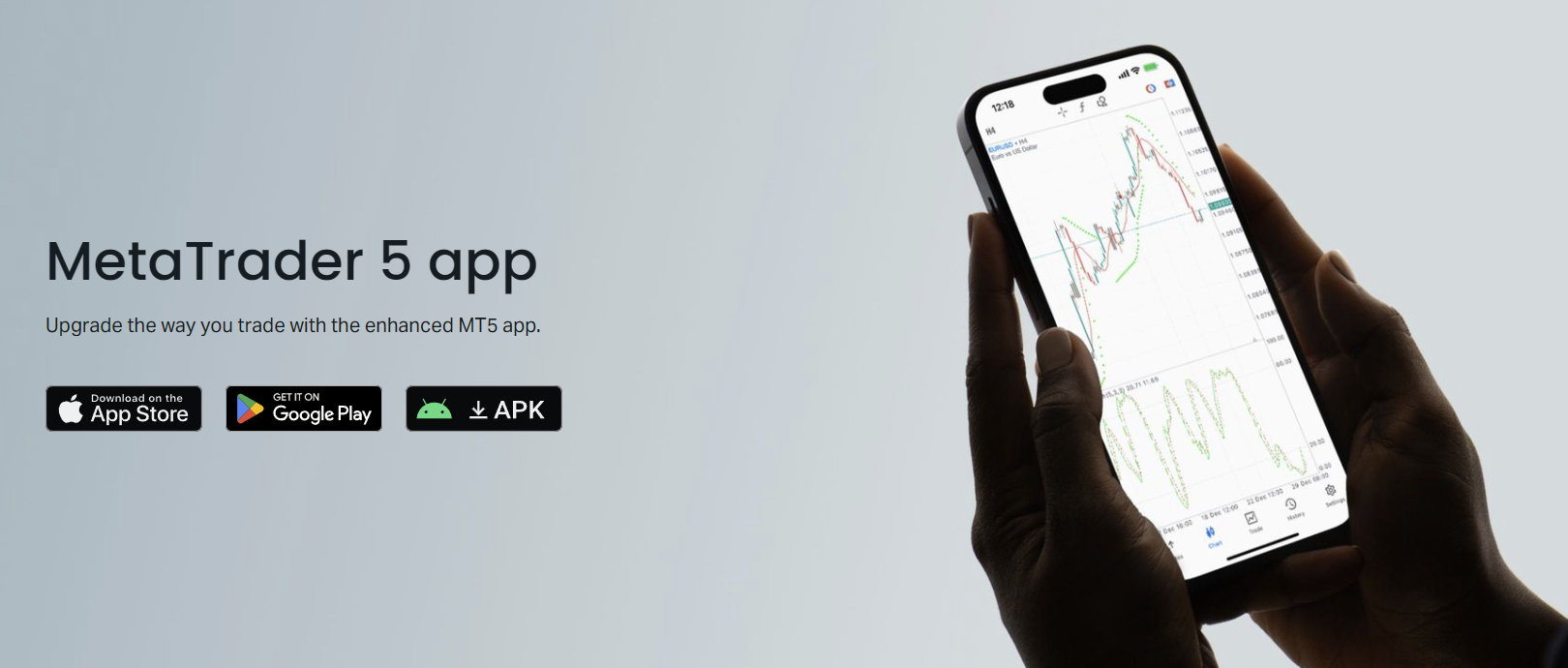
Installing the Exness MT5 mobile app differs slightly between iOS and Android devices. Both operating systems offer official app store downloads, while Android users also have the option to install via APK file directly from the Exness website. The installation process takes only a few minutes and requires minimal device storage.
- iOS: Search "MetaTrader 5" in the App Store, download the official MetaQuotes app, then add Exness server during login
- Android: Install from Google Play Store or download APK from Exness website for direct installation
- APK method: Enable unknown sources in Android settings, download from Exness download page, install and open
- Server selection: Choose Exness-MT5-Real or Exness-MT5-Demo depending on account type
The APK download option is particularly useful for traders in regions where Google Play access is restricted or for those who prefer direct installation. Exness provides verified APK files on their official download page, ensuring the same security and functionality as the Play Store version. Always verify the download source to avoid modified or malicious applications.
After installation, the app prompts for login credentials. Existing Exness clients enter their MT5 account number and password, while new users can register a demo account directly within the app. The server list includes both live and demo environments, clearly labeled to prevent accidental real-money trading on a practice account.
User Interface and Navigation Overview
The Exness MT5 mobile interface organizes functionality into five main tabs accessible from the bottom navigation bar. Each tab serves a distinct purpose, from market analysis to account management. The layout prioritizes chart visibility while keeping essential trading actions within thumb reach.
- Quotes tab: Real-time price watchlist with customizable symbol groups and spread display
- Charts tab: Full-screen technical analysis with indicators, timeframes, and drawing tools
- Trade tab: Open positions, pending orders, and account summary with profit/loss tracking
- History tab: Closed trades, balance operations, and detailed transaction reports
- Settings tab: Account management, notifications, chart preferences, and security options
The Quotes tab functions as a market scanner, displaying bid and ask prices with color-coded changes. Traders can create multiple watchlists for different asset classes or strategies. Tapping any symbol opens a context menu with quick actions: new order, chart, depth of market, and specification details. This design reduces the steps between analysis and execution.
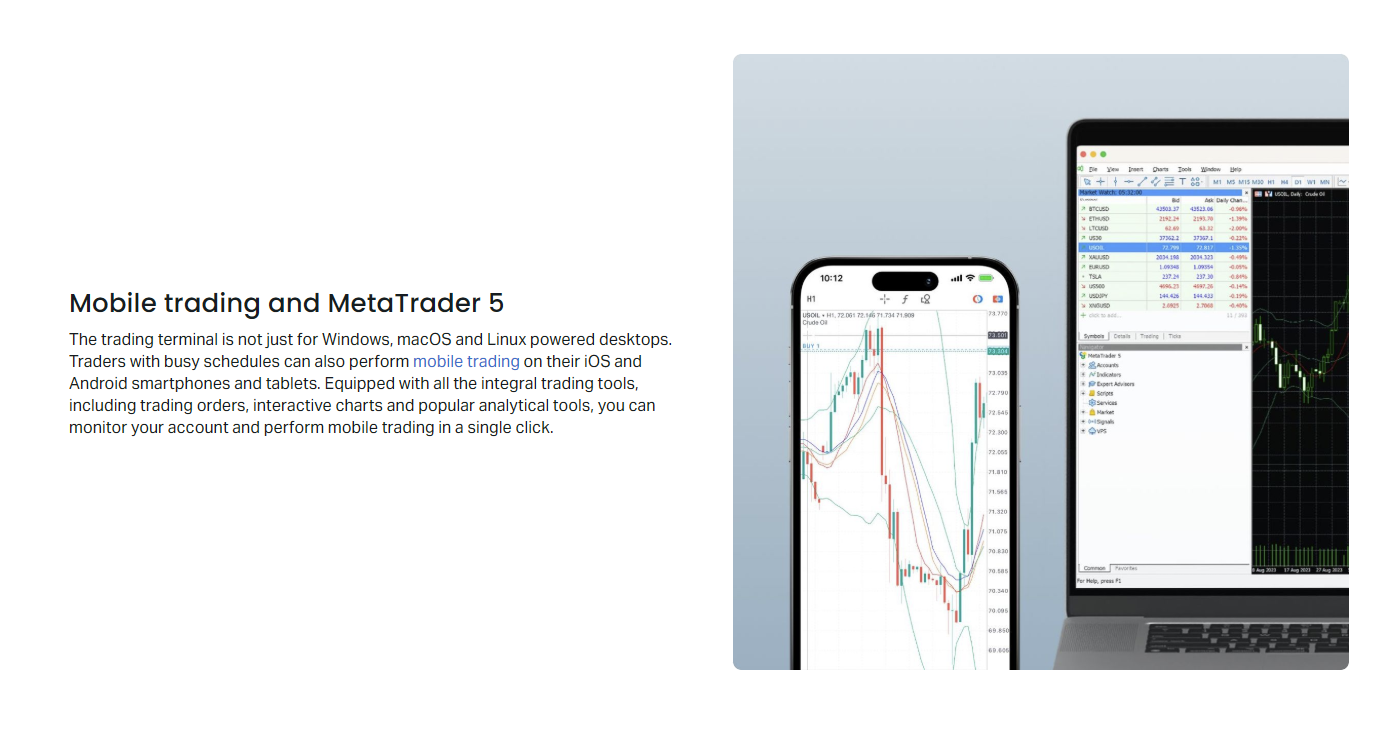
Chart navigation uses intuitive gestures: pinch to zoom, swipe to scroll through time, and long-press for crosshair precision. The chart toolbar provides rapid access to timeframe selection, indicator management, and drawing tools. Landscape mode expands the chart area for detailed analysis, while portrait mode keeps the navigation tabs visible for quick switching.
Charting Tools and Technical Analysis Features
The mobile charting engine supports 21 timeframes ranging from one minute to one month, matching the desktop version. Traders can apply up to 38 built-in technical indicators including trend, oscillator, volume, and Bill Williams categories. Custom indicators developed in MQL5 can also be imported, though compilation requires the desktop platform.
- Trend indicators: Moving Averages, Bollinger Bands, Parabolic SAR, Ichimoku Kinko Hyo
- Oscillators: RSI, Stochastic, MACD, CCI, Momentum, Williams %R
- Volume indicators: On Balance Volume, Money Flow Index, Accumulation/Distribution
- Bill Williams: Alligator, Fractals, Market Facilitation Index, Awesome Oscillator
- Drawing tools: Trend lines, channels, Fibonacci retracements, Andrews Pitchfork
Indicator settings mirror the desktop configuration options, allowing period adjustments, color customization, and level modifications. Multiple indicators can occupy the same subwindow or separate panels. The mobile interface handles indicator management through a searchable list with favorites for quick access. Performance remains smooth even with several indicators active on lower-end devices.
Scroll horizontally to see all columns
| Feature | MT5 Mobile | MT5 Desktop |
|---|---|---|
| Timeframes | 21 | 21 |
| Built-in Indicators | 38 | 38 |
| Custom Indicators | Import only | Full development |
| Drawing Tools | 15+ | 20+ |
| Multi-chart Layout | Single chart | Multiple windows |
| Strategy Tester | Not available | Full backtesting |
The primary limitation on mobile is screen real estate for multi-chart analysis and the absence of the Strategy Tester for backtesting Expert Advisors. Traders typically perform strategy development and optimization on desktop, then monitor and execute on mobile. Cloud synchronization keeps templates and profiles consistent across devices when using the same MetaQuotes ID.
Order Types and Execution on Mobile
Exness MT5 mobile supports all standard order types available on the desktop platform. Market execution orders fill at the best available price, while pending orders allow traders to set entry conditions in advance. The order entry screen adapts to the selected symbol, displaying relevant parameters such as contract size, margin requirements, and swap rates.
- Market Execution: Instant buy or sell at current market price with deviation control
- Buy Limit: Enter long below current price anticipating bounce
- Sell Limit: Enter short above current price anticipating reversal
- Buy Stop: Enter long above current price on breakout confirmation
- Sell Stop: Enter short below current price on breakdown confirmation
- Stop Limit: Combines stop trigger with limit execution for precise entry
Risk management tools integrate directly into the order screen. Stop Loss and Take Profit levels can be set in price, points, or monetary value. The calculator shows estimated margin, pip value, and potential profit or loss before confirmation. Trailing stop functionality activates once a position moves favorably, automatically adjusting the stop level to lock in gains.
One-click trading accelerates execution for scalpers and high-frequency strategies. When enabled, tapping the bid or ask price on the chart or quotes screen opens a position immediately with predefined volume and risk parameters. This feature requires explicit activation in settings and includes a confirmation toggle to prevent accidental trades. Execution speed on mobile matches desktop performance when connected to stable internet.
Account Management and Fund Operations
The Exness MT5 mobile app extends beyond trading to include comprehensive account management. Traders can deposit, withdraw, transfer between accounts, and monitor transaction history without leaving the application. This integration streamlines the workflow for active traders who need quick access to capital management.
- Deposit: Multiple payment methods including cards, e-wallets, and local bank transfers
- Withdrawal: Instant processing for most methods with no commission from Exness
- Internal transfer: Move funds between MT5 accounts within the same Personal Area
- Leverage adjustment: Change account leverage up to the maximum allowed per account type
- Account statements: Generate detailed reports for tax or performance analysis
The Personal Area integration allows seamless switching between the Exness mobile app and the MT5 terminal. Account verification status, bonus eligibility, and partner program statistics are accessible from the settings menu. Push notifications alert traders to margin calls, deposit confirmations, and withdrawal completions in real time.
Trading Instruments Available on Exness MT5 Mobile
Exness offers a broad range of CFD instruments tradable on the MT5 mobile platform. The asset selection covers major and minor forex pairs, global stock CFDs, major indices, precious metals, energies, and cryptocurrencies. Each instrument category has specific trading hours, margin requirements, and swap conditions visible in the symbol specification.
Scroll horizontally to see all columns
| Category | Examples | Typical Spreads |
|---|---|---|
| Forex Majors | EURUSD, GBPUSD, USDJPY | From 0.0 pips |
| Forex Minors | EURGBP, AUDJPY, CADCHF | From 0.5 pips |
| Stock CFDs | AAPL, TSLA, AMZN, GOOGL | From 0.1% |
| Indices | US30, US500, USTEC, GER40 | From 0.4 points |
| Metals | XAUUSD, XAGUSD, XPTUSD | From 0.1 pips |
| Energies | UKOIL, USOIL, NGAS | From 1.5 points |
| Cryptocurrencies | BTCUSD, ETHUSD, LTCUSD | From 0.5% |
Trading hours follow the underlying exchange schedules. Forex operates 24/5 with a weekend gap, while stock CFDs follow their respective exchange sessions. Cryptocurrency CFDs trade 24/7 with brief maintenance windows. The mobile app displays session indicators on charts and in the market watch, helping traders avoid low-liquidity periods.
Exness Trade App vs MT5 Mobile Comparison
Exness provides two mobile trading applications: the proprietary Exness Trade app and the standard MetaTrader 5 mobile terminal. Both connect to Exness servers but serve different trader profiles. Understanding the distinctions helps choose the right tool for your trading style and experience level.
Scroll horizontally to see all columns
| Feature | Exness Trade App | MT5 Mobile |
|---|---|---|
| Charting Depth | Basic indicators | Full 38 indicators |
| Automated Trading | Not supported | Expert Advisors |
| Order Types | Market, Limit, Stop | All 6 MT5 types |
| Timeframes | Limited selection | All 21 timeframes |
| Account Management | Full integration | Basic functions |
| Social Trading | Built-in copy trading | Via signals only |
| Learning Resources | Integrated education | External only |
The Exness Trade app targets newer traders with a simplified interface, built-in education, and social trading features. MT5 mobile caters to experienced traders who need advanced charting, algorithmic trading, and comprehensive technical analysis. Many Exness clients install both apps, using Exness Trade for account management and quick trades, while relying on MT5 for serious analysis.
The choice between Exness Trade and MT5 mobile often reflects a trader's evolution. Beginners appreciate the guided experience of the proprietary app, while seasoned traders demand the analytical depth only MT5 provides.
Automated Trading and Signals on Mobile
MetaTrader 5 mobile supports Expert Advisor execution but not development or backtesting. EAs compiled on the desktop platform run on mobile when the app remains open and connected. This limitation means mobile devices can monitor and execute automated strategies but cannot serve as primary VPS replacements for 24/7 operation.
- EA execution: Requires app to stay in foreground with active internet connection
- Signal subscriptions: Copy trades from MQL5 signal providers directly in app
- VPS integration: Exness offers free VPS for qualifying accounts to run EAs continuously
- Push notifications: Receive trade alerts from EAs and signals on mobile device
- Strategy synchronization: Cloud profiles keep EA settings consistent across devices
The MQL5 Signals service integrates natively into the mobile terminal. Traders can browse providers, review performance statistics, and subscribe with a few taps. Subscription management including pause, resume, and cancellation works entirely on mobile. Signal copying respects account leverage and volume scaling settings configured during subscription.
For serious algorithmic trading, Exness provides free VPS hosting to clients meeting volume requirements. The VPS runs MT5 desktop continuously, allowing EAs to operate independently of the mobile device. Mobile then serves as a monitoring and control interface rather than the execution engine. This architecture ensures strategy reliability regardless of phone battery, connectivity, or app state.
Risk Management Tools and Features
Effective risk management on mobile requires deliberate configuration of available tools. The compact screen can obscure critical information if not properly arranged. Exness MT5 mobile provides several layers of protection that traders should understand and activate before live trading.
- Margin level monitoring: Color-coded indicator in trade tab shows free margin percentage
- Stop out protection: Automatic position closure at 0% margin level on most account types
- Negative balance protection: Exness covers losses exceeding account equity
- Position sizing calculator: Built-in tool computes lot size from risk percentage
- Exposure summary: Aggregate view of correlated positions across symbols
The margin indicator deserves particular attention on mobile. Green indicates healthy margin above 100%, yellow warns between 50-100%, and red signals critical levels below 50%. Push notifications can alert at custom thresholds. Traders should configure these alerts during initial setup rather than discovering them during adverse market moves.
Performance Optimization and Troubleshooting
Mobile trading performance depends on device specifications, network quality, and app configuration. Older devices may struggle with multiple charts and indicators simultaneously. Network latency affects execution speed, particularly for scalping strategies. Several optimization techniques improve reliability.
- Close background apps to free RAM for chart rendering
- Use Wi-Fi or 5G for lowest latency during active trading sessions
- Limit active charts to one or two for smoother navigation
- Disable unnecessary indicators during high-volatility events
- Clear app cache periodically in device settings if performance degrades
- Keep app updated for bug fixes and compatibility improvements
Common issues include quote freezing, chart loading delays, and login failures. Quote freezing typically resolves by switching tabs or restarting the app. Chart delays often indicate insufficient device memory or network congestion. Login failures usually stem from incorrect server selection or expired passwords. The Exness support team assists with persistent technical problems via in-app chat.
A stable internet connection matters more than device power for mobile trading. A mid-range phone on fiber Wi-Fi outperforms a flagship device on congested 4G during news events.
Security Features and Data Protection
Exness implements multiple security layers for the MT5 mobile application. Data transmission uses TLS 1.2 encryption between the app and trade servers. Account credentials are never stored locally in plain text. Biometric authentication adds a device-level barrier beyond the MT5 password.
- End-to-end encryption for all trade data and personal information
- Biometric login: Fingerprint, Face ID, or device PIN integration
- Session management: View and revoke active sessions from any device
- IP whitelist: Restrict account access to trusted IP addresses via Personal Area
- Withdrawal confirmation: Email or SMS verification for all fund transfers
- Automatic logout: Configurable timeout after inactivity period
The investor password feature allows read-only access for performance tracking or signal verification without trading permissions. This is useful for sharing results with mentors or copying services while maintaining full control. Regular password updates and monitoring of login history in the Personal Area complete the security posture.
Practical Trading Workflows for Mobile
Successful mobile trading requires adapted workflows that account for screen limitations and environmental distractions. Professional traders develop routines that leverage mobile strengths — portability and instant access — while mitigating weaknesses like reduced chart visibility and fat-finger errors.
- Morning routine: Check economic calendar, review overnight positions, set alerts
- Pre-trade checklist: Verify margin, confirm symbol, check spread, set SL/TP
- Execution: Use one-click for speed or full order screen for precision
- Monitoring: Set price alerts for key levels instead of staring at charts
- Journal: Screenshot trades with annotations for later desktop review
- End of day: Flatten positions if required, review P&L, adjust stops for overnight
Price alerts reduce the need for constant chart watching. The mobile app supports price, indicator, and time alerts with push notifications. Traders can set alerts at support/resistance levels, moving average crosses, or specific times like economic releases. This transforms the phone from a distraction into a disciplined trading assistant.
Scroll horizontally to see all columns
| Style | Primary Mobile Use | Desktop Role |
|---|---|---|
| Scalping | Execution only | Analysis, EA monitoring |
| Day Trading | Monitoring, alerts, execution | Morning prep, journal review |
| Swing Trading | Alerts, position checks | Deep analysis, strategy dev |
| Position Trading | Weekly reviews, adjustments | All analysis and planning |
The workflow table illustrates how mobile utility varies by trading horizon. Scalpers rarely analyze on mobile due to speed requirements. Swing and position traders benefit most from mobile monitoring and alert capabilities. Matching the tool to the task prevents frustration and errors.
Common Challenges and Solutions
Traders transitioning to mobile often encounter predictable obstacles. Recognizing these challenges early allows proactive adaptation rather than learning through costly mistakes. The following issues appear frequently among Exness MT5 mobile users.
- Fat-finger errors: Accidental taps on wrong price levels or order buttons
- Screen glare: Outdoor visibility issues affecting chart reading accuracy
- Battery drain: Continuous chart updates and GPS consume power rapidly
- Notification overload: Too many alerts causing desensitization to important ones
- Context switching: Difficulty maintaining focus between trading and other apps
- Data costs: Chart loading and quote streaming on limited mobile plans
Fat-finger errors decrease with one-click trading confirmation enabled and by using the full order screen for larger positions. Screen glare mitigates with matte screen protectors and brightness management. Battery life extends by carrying a power bank and reducing chart refresh rates in settings. Notification fatigue resolves by keeping only actionable alerts active — price levels and margin warnings rather than every tick movement.
The best mobile traders treat their phone as a specialized tool, not a miniature desktop. They strip away non-essential features and build muscle memory for the few actions that matter.
Advanced Features for Experienced Traders
Beyond basic execution, Exness MT5 mobile includes advanced features that experienced traders leverage for efficiency. These tools require familiarity with the MT5 ecosystem but provide significant advantages once mastered.
- Depth of Market (DOM): View liquidity levels and place orders directly in the order book
- Economic calendar: Integrated FXStreet calendar with impact ratings and alerts
- Trading Central signals: Technical analysis signals overlaid on charts
- Custom symbol sets: Save and switch between watchlists for different strategies
- Chart templates: Apply predefined indicator and drawing combinations instantly
- Cross-device sync: MetaQuotes ID synchronizes settings, templates, and alerts
Depth of Market provides institutional-style liquidity visibility for major forex pairs and popular CFDs. Traders see volume at each price level, enabling more informed entry and exit decisions. The economic calendar filters events by currency and impact, with push notifications for high-impact releases. Trading Central signals appear as actionable levels on charts with suggested entry, stop, and target prices.
Exness MT5 Mobile for Different Account Types
Exness offers several MT5 account types, each with distinct trading conditions that affect mobile trading experience. The mobile platform displays account-specific parameters including spreads, commissions, leverage limits, and swap rates. Understanding these differences helps traders select the appropriate account for their strategy.
Scroll horizontally to see all columns
| Account Type | Min Deposit | Spreads From | Commission |
|---|---|---|---|
| Standard | $1 | 0.3 pips | None |
| Standard Cent | $1 | 0.3 pips | None |
| Pro | $200 | 0.1 pips | None |
| Zero | $200 | 0.0 pips | $3.5/lot/side |
| Raw Spread | $200 | 0.0 pips | $3.5/lot/side |
Standard and Standard Cent accounts suit beginners with low minimum deposits and no commissions. Pro accounts offer tighter spreads for higher-volume traders. Zero and Raw Spread accounts provide the tightest spreads with commission-based pricing, favored by scalpers and EA users. The mobile app clearly labels the account type in the trade tab header, preventing confusion when managing multiple accounts.
Key Takeaways About Exness MT5 Mobile
The Exness MT5 mobile application delivers professional-grade trading capabilities in a portable format. It supports the full range of Exness instruments with competitive spreads, fast execution, and comprehensive risk management tools. The platform suits traders who need market access away from their desk without sacrificing analytical depth. Key strengths include the complete indicator suite, all order types, signal integration, and seamless account management. Limitations center on screen constraints for multi-chart analysis and the inability to develop or backtest automated strategies on mobile. Traders achieve the best results by using mobile for execution, monitoring, and alerts while reserving desktop for research, strategy development, and complex analysis.
Frequently Asked Questions
Can I download Exness MT5 mobile APK directly from the Exness website?
Yes, Exness provides verified APK files for Android users on their official download page. This option is useful when Google Play Store access is unavailable or restricted.
Does Exness MT5 mobile support Expert Advisors?
The mobile app can run Expert Advisors compiled on the desktop platform, but the app must remain open and connected. For 24/7 automated trading, Exness offers free VPS hosting to qualifying accounts.
What is the difference between Exness Trade app and MT5 mobile?
Exness Trade app is a proprietary simplified platform with built-in education and social trading. MT5 mobile is the full MetaTrader 5 terminal with advanced charting, 38 indicators, all order types, and EA support.
How do I enable push notifications for price alerts on Exness MT5 mobile?
In the app settings, enable push notifications. Then on any chart, long-press the price scale to create a price alert, or use the alerts section in the trade tab to configure indicator and time-based alerts.
Can I manage multiple Exness MT5 accounts on one mobile app?
Yes, you can add multiple accounts in the settings menu and switch between them. Each account maintains its own chart layouts, indicators, and trade history.
Is my money safe when trading on Exness MT5 mobile?
Exness uses TLS encryption for all data transmission, offers biometric login, two-factor authentication, and negative balance protection. Client funds are segregated from company operational funds.
What are the minimum device requirements for Exness MT5 mobile?
iOS 11.0 or later for iPhone/iPad. Android 5.0 or later with at least 2GB RAM recommended for smooth charting with multiple indicators.